( Free · in the browser · no sign-up )
Adjust audio volume online Set gain and check the predicted peak
Change linear gain from 0% to 200%, compare the original and predicted peak, and preview before exporting.
Or drop an audio or video file anywhere on this page. Supports: MP3, WAV, M4A, AAC, FLAC, OGG, WebM, MP4, MOV, MKV, and more.
The file you choose is processed in this tab; the page still loads site resources and consented analytics. Read the Privacy Policy.
- 01No installation
- 02Audio processed locally
- 03Preview before export
- 04No account
( What it is )
Increase audio volume online for voice notes, music and video
The control applies linear gain from 0% to 200%, shows predicted peak and clipping, and can normalize peak to −1 dBFS; it does not measure LUFS loudness or true peak.
Boost Quiet Recordings
Amplify podcast interviews recorded at low gain, voice memos captured too far from the microphone, or music tracks that simply feel too soft. The control applies linear gain from 0% to 200%, shows predicted peak and clipping, and can normalize peak to −1 dBFS; it does not measure LUFS loudness or true peak.
Reduce Loud or Distorted Audio
Recordings made with the microphone too close to the source, or tracks that peak too hot during export — reduce the gain to eliminate digital distortion before mixing, publishing, or uploading to any platform.
Normalize for Consistent Loudness
The control applies linear gain from 0% to 200%, shows predicted peak and clipping, and can normalize peak to −1 dBFS; it does not measure LUFS loudness or true peak. Essential when preparing multiple audio files that need to sound equally loud on playback.
( How it works )
How to make audio louder in 3 steps
No DAW, no desktop app, no learning curve. Open the browser, upload your audio, and set the volume — it takes under a minute, even for large files.
- ( 01 / 03 )
Upload Your Audio File
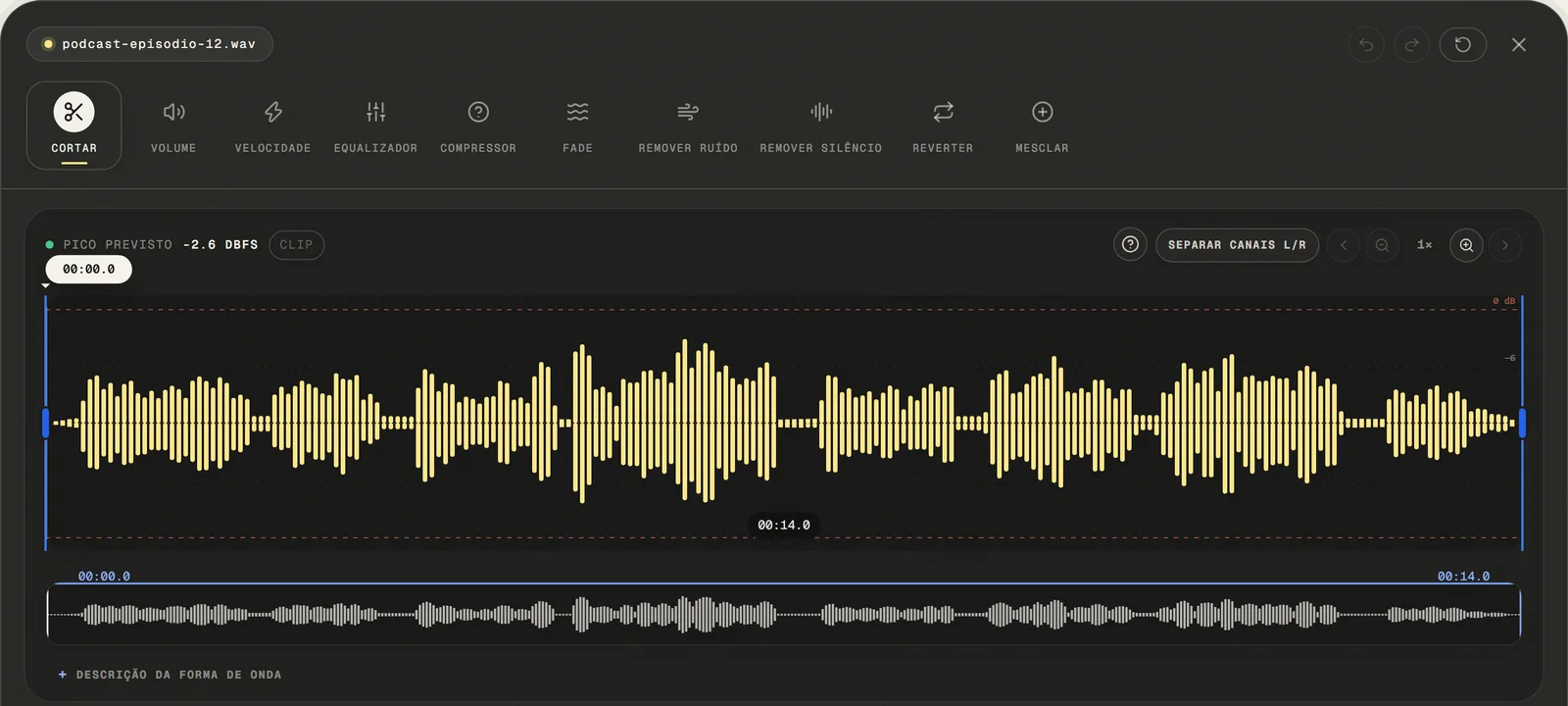
Choose a common audio or video file, paste a public link, or use the microphone. For video, only the first compatible audio track is opened.
local processing
- ( 02 / 03 )
Set Your Volume Level
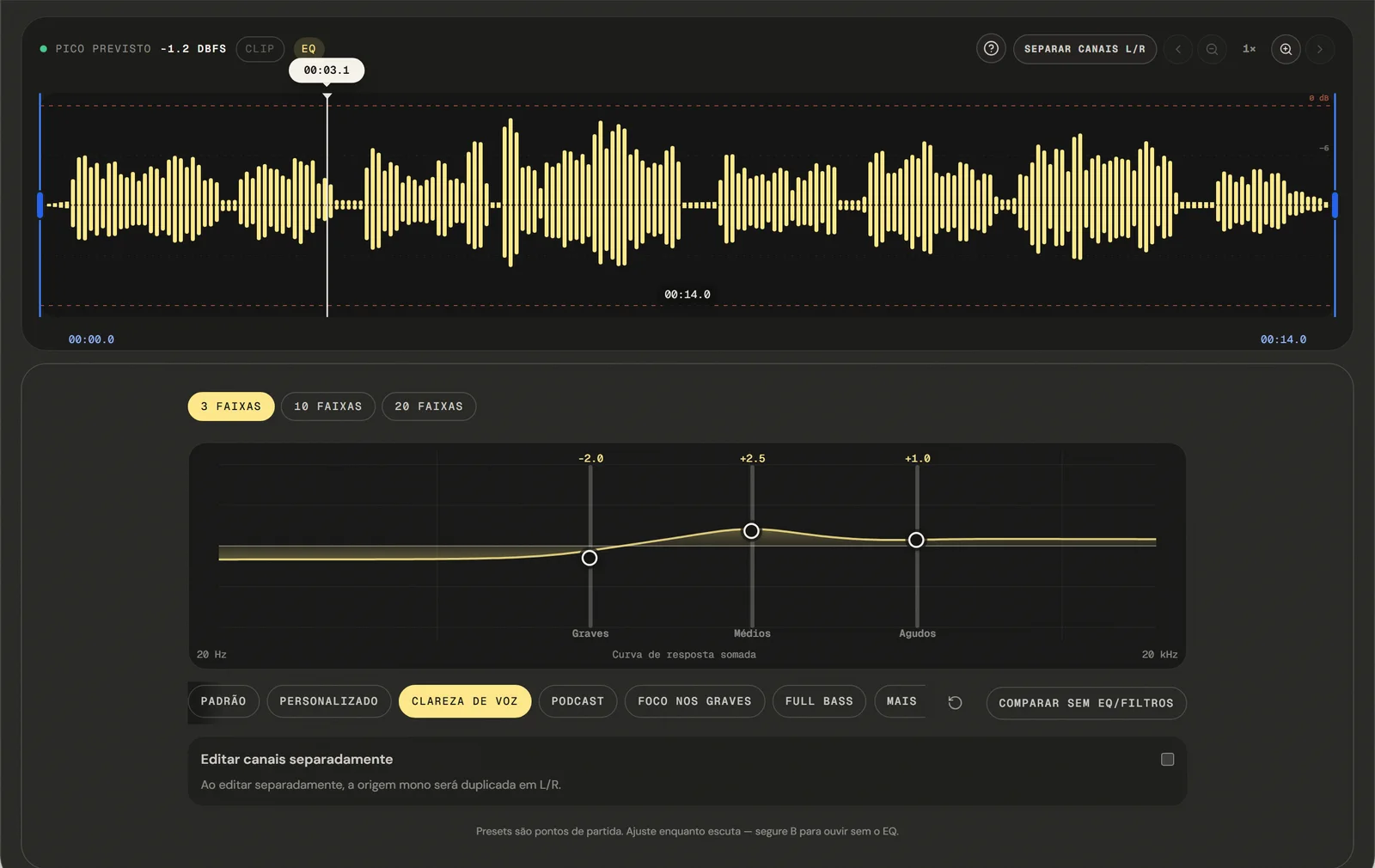
Choose a gain value in decibels — for example, +6 dB to significantly increase loudness, or -3 dB to soften an overpowering track. The control applies linear gain from 0% to 200%, shows predicted peak and clipping, and can normalize peak to −1 dBFS; it does not measure LUFS loudness or true peak. The waveform preview updates in real time as you adjust the slider.
dB Precision
- ( 03 / 03 )
Preview, Export, and Download
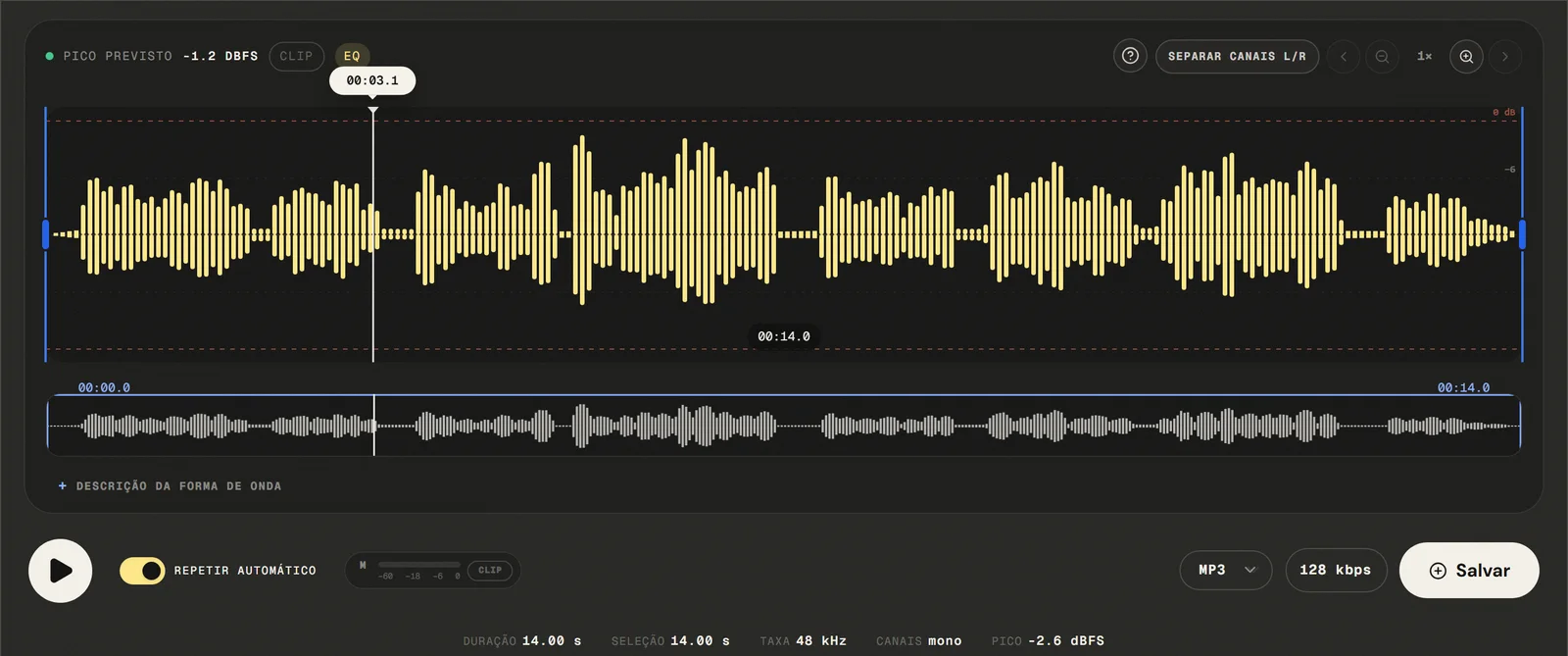
Play back the adjusted audio to confirm the result sounds right before committing. Once satisfied, click Export, choose your preferred format (MP3, WAV, M4A, or FLAC), and download the file after local processing. Editing uses decoded samples: MP3 and M4A are re-encoded; WAV uses 16-bit PCM and FLAC losslessly compresses that PCM.
No Watermarks
( Precision )
Gain from 0% to 200%, with the peak predicted before export
Beyond simple volume control, our tool gives you a focused set of audio level management features — all running locally in your browser.
- 01
Gain Boost by Exact dB Value
Apply a uniform gain increase or decrease to the entire audio file by a specific decibel amount. Useful for matching the loudness of different recordings to a common reference level without any automated analysis.
- 02
Peak gain adjustment
The control applies linear gain from 0% to 200%, shows predicted peak and clipping, and can normalize peak to −1 dBFS; it does not measure LUFS loudness or true peak. No manual guesswork: the output is always at the maximum safe level for that file.
- 03
Real-Time Waveform Preview
See the amplitude of the waveform change as you adjust the gain slider — before you commit to exporting. Compare the original and adjusted levels visually to confirm the change looks right before you listen.
( Why in the browser )
Why a volume changer online beats recording it again
Tools like Audacity and Adobe Audition are powerful — but they are overkill for a simple volume adjustment. Our online tool delivers practical results after local processing, directly in your browser, without any installation.
- ( 01 )
Works Instantly, No Setup
No download, no installation wizard, no system requirements. Open the tool in your browser and adjust volume in under a minute — on Windows, macOS, Linux, iOS, or Android.
- ( 02 )
Processed in your browser
Volume adjustment runs entirely in your browser via Web Audio API and browser JavaScript. Your audio files never touch our servers, are never stored, and are never accessible to anyone other than you. Full compliance with GDPR and global data privacy standards.
- ( 03 )
Gain Control in Decibels
Adjust volume in precise decibel increments — not a vague slider with no reference. The same dB-level control you find in practical DAW software, available for free with real-time waveform feedback.
( Other tools )
Other free audio tools
Open only the tool needed for the next step in your file.
( Where your audio goes )
( File processing )
Your audio is adjusted in this tab, not uploaded
The chosen audio file is decoded and edited locally. The page may make connections for site resources and consented analytics.
Read the Privacy PolicyFile in browser memory
. The audio file is not sent to the application server to perform the edit.Device limits
. Long files require more memory; the practical limit varies by device and browser.Local export
. The result is rendered in the browser. Compressed formats are re-encoded.
( Questions? Answered )
Questions about changing audio volume
Direct answers about how the current tool works.
How do I make a quiet recording louder?
Raise the gain above 100% and watch the predicted peak as you go. The display tells you where the loudest moment will land, so you can push until just short of the ceiling rather than guessing.
What does the peak warning mean?
It means the gain you picked would push the loudest sample past digital full scale, where the waveform gets flattened and the sound turns hard and gritty. Back the gain off until the warning clears.
Can this fix audio that is already distorted?
No. Once samples were recorded past full scale, the peaks were flattened and the missing shape is not in the file. Lowering the gain makes it quieter but just as distorted.
How do I make a file quieter?
Set the gain below 100% — half the original level is 50%. This is the safe direction: reducing gain never introduces clipping, so a file that is too strong for its context is easy to tame.
Does this match loudness to a broadcast target?
The control applies linear gain from 0% to 200%, shows predicted peak and clipping, and can normalize peak to −1 dBFS; it does not measure LUFS loudness or true peak.
Why do my files still sound uneven next to each other?
Peak level and perceived loudness are not the same thing: a sparse recording and a dense one can share a peak and still sound far apart. Set each by ear against the others rather than by the number alone.
Which formats can I open and export?
Common audio and video containers are accepted: the editor tries native decoding first and falls back to a local FFmpeg build to pull the first compatible audio track. Exports are MP3 from 64 to 320 kbps, 16-bit PCM WAV, M4A/AAC at 192 kbps, and FLAC.
Is my audio file uploaded to a server?
The audio is decoded and adjusted locally in this browser tab and is not sent to the application server to perform the edit. The page itself still loads site resources and consented analytics.
( Product evidence )
How this volume tool was tested
The control applies linear gain from 0% to 200%, shows predicted peak and clipping, and can normalize peak to −1 dBFS; it does not measure LUFS loudness or true peak.
Reviewed 3 September 2026
Read the methodology( 01 — Tested )
Test coverage
Environment: capability matrix v1, unit tests, and Chromium desktop and mobile profiles.
( 02 — Limits )
Device constraints
Processing time and support for additional inputs vary with device memory, browser capabilities, and the codecs contained in the file.
( Field notes )
Learn the technique behind the tool
Guides written and reviewed by the person who builds the editor, including the real limits of each feature.
- ( 01 ) · 13 min read
How to Adjust Audio Volume Online without Distortion
Learn to set gain from 0 to 200% and normalize sample peak to -1 dBFS while distinguishing peak, LUFS, true peak and clipping.
Read - ( 02 ) · 14 min read
LUFS Audio Volume Guide for Podcasts, Videos, Lessons and Music
Understand integrated loudness and true peak, why this editor does not measure LUFS, and how to verify current delivery requirements externally.
Read - ( 03 ) · 9 min read
Audio Editing Glossary: 40 Terms Every Content Creator Needs to Know
Audio editing glossary with 40 essential terms. Learn what bitrate, normalization, clipping, EQ and compression mean — clear definitions for podcasters and content creators.
Read
( Ready when you are )
Adjust audio volume online
The control applies linear gain from 0% to 200%, shows predicted peak and clipping, and can normalize peak to −1 dBFS; it does not measure LUFS loudness or true peak.