Have you ever heard a song that starts abruptly — at full volume, with no warning, as if someone hit play at the wrong moment? Or a podcast that ends with a harsh cut, as if the recorder simply stopped? These two mistakes are among the most obvious signs of amateur audio production, and both share the same simple solution: fade in and fade out.
The fade is one of the oldest and most universal techniques in sound production. From the first vinyl records to today's podcasts and streaming playlists, gradual volume transitions are what separate audio that sounds "raw" from a finished product with professional quality.
In this complete guide, you will learn what fade in and fade out are, how they work technically, which curve types to use in each situation, and how to apply these techniques for free, right in your browser — without installing any software.
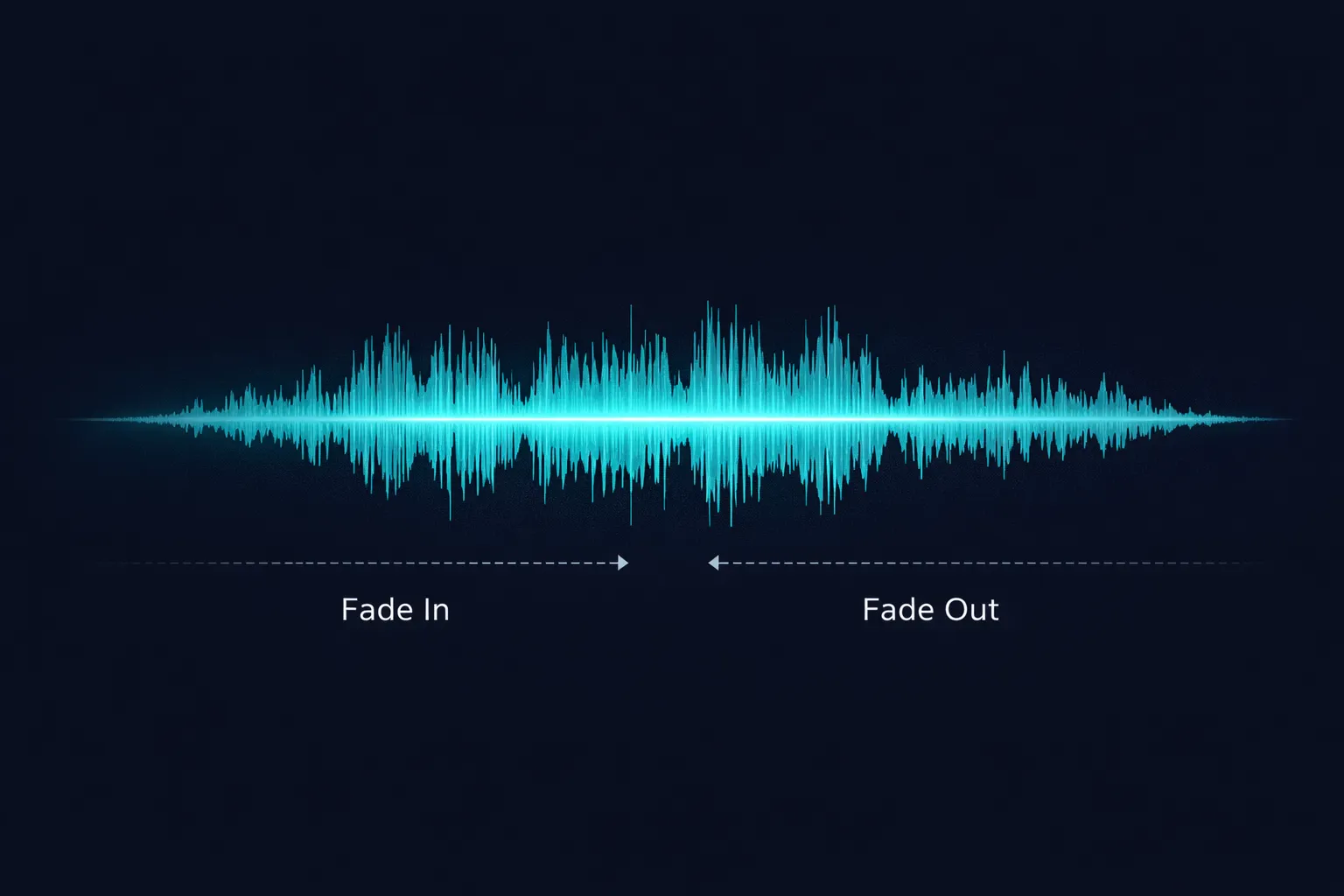
Table of Contents
- What Are Fade In and Fade Out?
- Fade In vs. Fade Out: Differences & When to Use Each
- Fade Curve Types: Which to Choose?
- Recommended Fade Durations by Context
- How to Apply Fade In & Fade Out Online: Step-by-Step
- Advanced Fade Techniques
- Real Use Cases: When Fade Makes All the Difference
- Common Mistakes When Applying Fade & How to Avoid Them
- Frequently Asked Questions (FAQ)
- Conclusion
What Are Fade In and Fade Out?
Fade in and fade out are volume transition effects that make audio increase or decrease gradually, instead of starting or ending abruptly.
The term "fade" means "to gradually disappear" — which is exactly what happens with the sound: it emerges from silence smoothly (fade in) or dissolves into silence at the end (fade out).
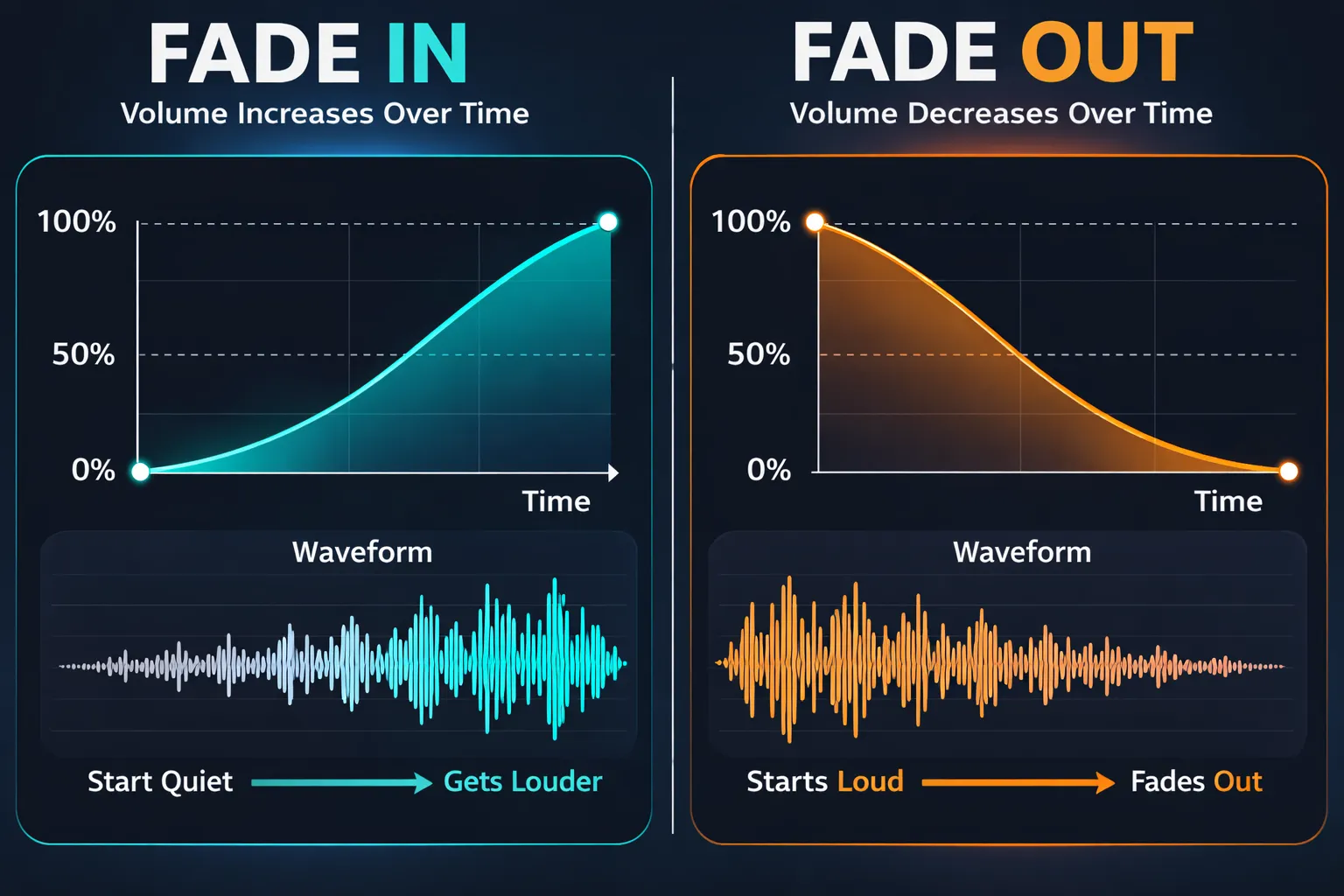
From a technical standpoint, a fade is a volume automation — a curve that defines how the audio gain varies over a time interval. At the beginning (fade in), gain starts at 0% (complete silence) and increases progressively to 100% (normal volume). At the end (fade out), the process is reversed: gain goes from 100% down to 0%.
The duration and shape of this curve determine the character of the fade — smooth, dramatic, natural, or artificial. It is precisely this choice that makes the difference between a fade that sounds professional and one that draws attention for the wrong reasons.
Why does the fade exist?
Historically, the fade out in music emerged in the 1950s and 1960s as a solution to a technical problem: songs without a defined ending — such as jazz improvisations or rock grooves — needed some way to conclude on a vinyl record or on the radio. The solution was simple and elegant: the sound engineer would simply reduce the volume gradually while the music kept playing.
Today, the fade remains one of the most widely used tools in audio production, but for reasons far beyond the original problem. It solves technical issues, improves the listener's experience, and gives a polished finish to any sound production.
Fade In vs. Fade Out: Differences & When to Use Each
Fade In
Fade in gradually increases volume from silence to the normal playback level. It is used at the beginning of a track, segment, or audio clip.
When to use fade in:
- At the start of a podcast episode for a smooth entrance
- When introducing background music or a soundtrack in a video
- After a cut in a recording, to avoid an abrupt start
- In songs that begin gradually, building in intensity
- To smooth the entry of a new segment in an audio montage
Fade Out
Fade out gradually decreases volume from the normal level to complete silence. It is used at the end of a track or segment.
When to use fade out:
- At the end of podcast episodes for an elegant exit
- At the close of songs without a defined ending
- To end a soundtrack before the next segment of a video
- To smooth the end of a recording that finishes with noise or a sudden stop
- In transitions between distinct segments of an audio montage
Fade Curve Types: Which to Choose?
The shape of a fade curve can change its sound. The following types are educational context: the current Audio-Editor Online tool implements only a linear curve, with independent durations up to 10 seconds.
Linear Curve
In a linear curve, volume changes at a constant rate over time. If the fade lasts 4 seconds, after 2 seconds the volume is exactly at the midpoint.
Sonic character: mathematically uniform, but can sound slightly artificial to the human ear — especially in fade outs, where volume perception is not linear.
Logarithmic Curve (Equal Power)
The logarithmic curve compensates for the non-linear volume perception of the human ear. It changes more slowly at the beginning and more rapidly at the end (for fade out) — creating a more natural and gradual sense of disappearance.
Sonic character: the most natural and pleasing for most listeners. The sound seems to fade organically, without moments where the change feels too noticeable.
Exponential Curve (Concave)
The exponential curve does the opposite of the logarithmic: it changes rapidly at the beginning and more slowly at the end. In an exponential fade out, volume drops very quickly in the first moments then gently trails off to silence.
Sonic character: dramatic and intense. The sound seems to "vanish" abruptly at the start of the fade, then dissolves gently.
S-Curve
The S-curve combines characteristics of both logarithmic and exponential curves — it starts slowly, accelerates in the middle, and slows again at the end. This creates a smooth transition at both extremities.
Sonic character: very natural and fluid. It feels as if the sound "breathes" — smooth entry and exit at both ends.
Recommended Fade Durations by Context
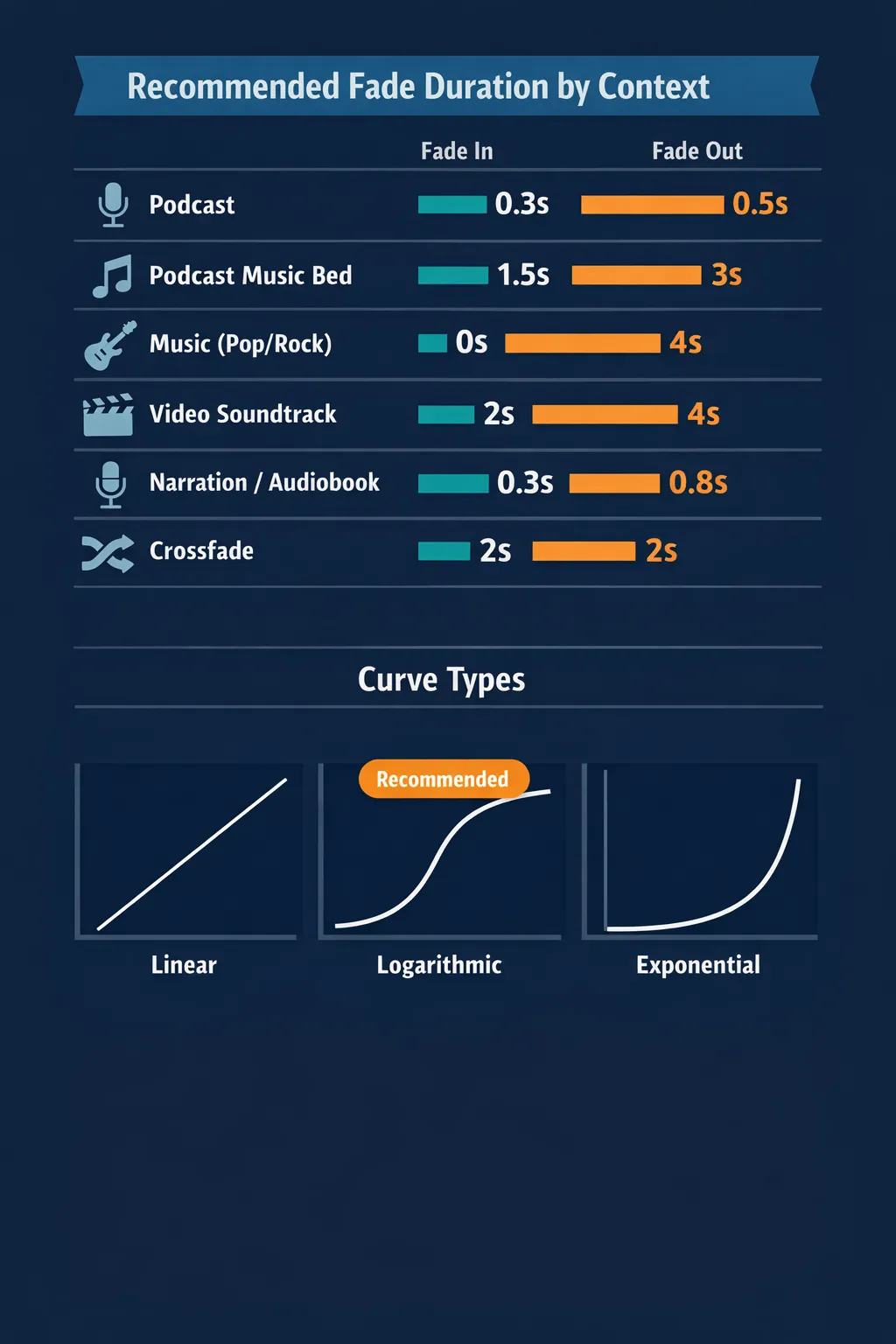
The ideal fade duration depends entirely on the context and the desired effect. The table below serves as a reference:
| Context | Fade In | Fade Out | Curve |
|---|---|---|---|
| Podcast (voice) | 0.3 – 0.5 s | 0.5 – 1 s | Linear |
| Podcast background music | 1 – 2 s | 2 – 4 s | Linear (current tool) |
| Pop/rock music | 0 (direct start) | 3 – 6 s | Logarithmic |
| Ambient/electronic music | 2 – 8 s | 4 – 10 s | Logarithmic or S |
| Narration/audiobook | 0.3 – 0.5 s | 0.5 – 1 s | Linear |
| Video soundtrack | 1 – 3 s | 2 – 5 s | Logarithmic |
| Presentation / slides | 1 – 2 s | 2 – 3 s | Logarithmic |
| Sound effects / SFX | 0.1 – 0.5 s | 0.5 – 2 s | Linear or Exponential |
| Crossfade between tracks | Not available | Not available | Requires multitrack overlap |
How to Apply Fade In & Fade Out Online: Step-by-Step
With Audio-Editor Online, applying a linear fade is quick and needs no installation. Device files are processed locally; some public cloud-link imports can use a temporary server fallback.
Step 1: Access the tool and upload your file
Go to the fade in and fade out tool and choose a compatible file. Decoding depends on browser, device, and codec; local files are processed on the device.
Step 2: Choose fade in, fade out, or both
Select which type of fade to apply:
- Fade in only: for smooth entrances at the start
- Fade out only: for elegant exits at the end
- Both: to apply both transitions at once
Step 3: Set the duration of each fade
Use the sliders to set the duration of fade in and fade out separately. For most practical cases, start with 1–2 seconds and adjust based on the result.

Step 4: Preview the linear fade
The current tool uses a linear curve. Preview both edges and adjust either duration, up to 10 seconds, until the transition suits the source.
Step 5: Preview before exporting
Use the play button to listen to the result. Pay special attention to the beginning (fade in) and end (fade out) — these are the regions the listener will notice first.
Step 6: Adjust and export
If the fade is too short or too long, adjust the duration and preview again. WAV output is PCM 16-bit; MP3 and M4A are smaller lossy outputs.
Advanced Fade Techniques
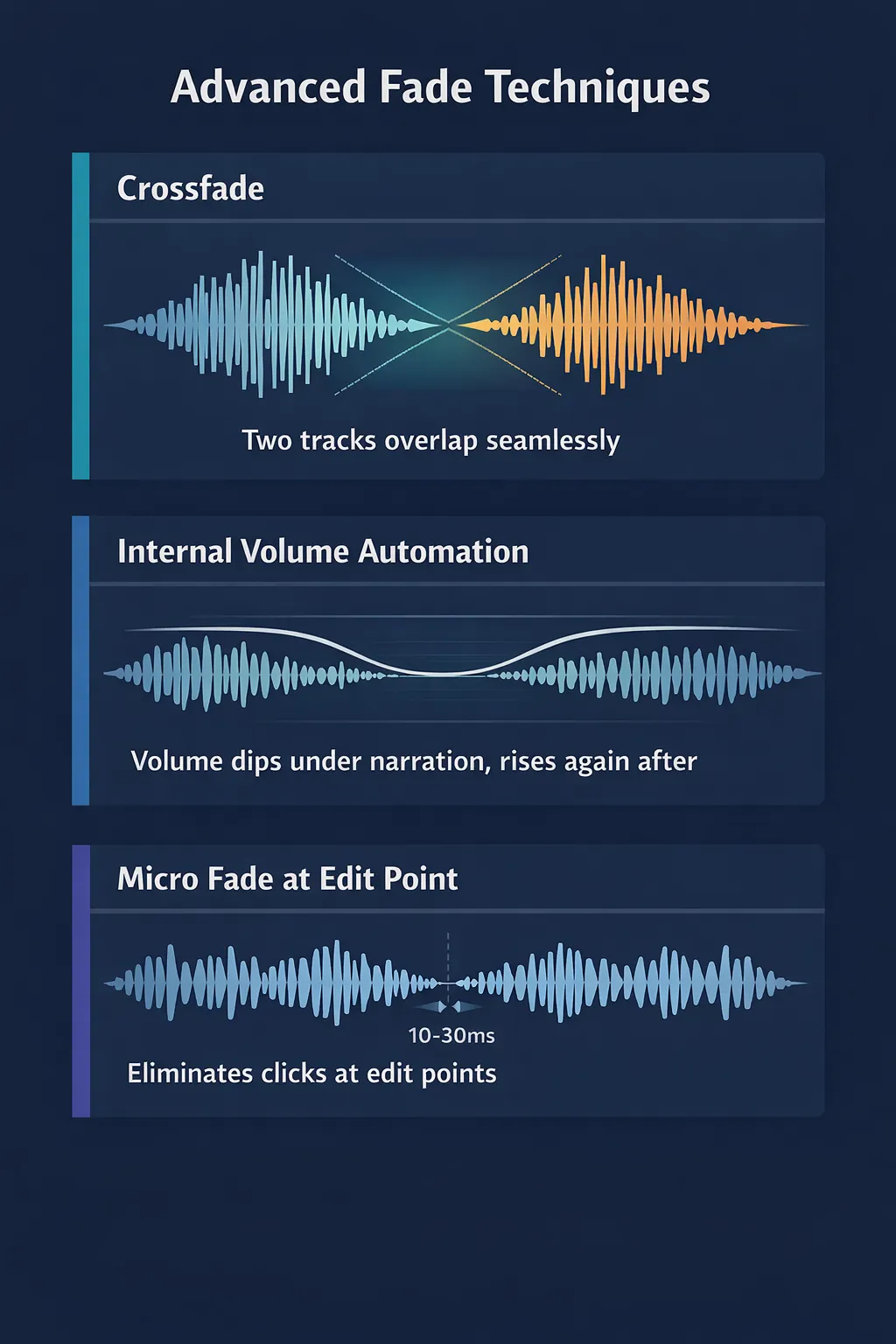
Crossfade: Transition Between Two Tracks
A crossfade is the technique of simultaneously applying a fade out at the end of one track and a fade in at the beginning of the next — so the two overlap during the transition. The result is a smooth, continuous change from one song to the next, with no silence between them.
Internal Fade (Volume Automation)
Beyond fades at the start and end of a file, you can apply fades at any internal point of the audio — to gradually increase the volume of a section or reduce it before narration, for example. This technique is called volume automation and is widely used in podcast productions with background music.
Micro Fade to Smooth Cuts
When removing a section from the middle of a recording, joining the two segments can create an audible click. Applying a micro fade out (10–30 milliseconds) at the end of the first segment and a micro fade in at the start of the second completely eliminates this issue, making the edit imperceptible.
Real Use Cases: When Fade Makes All the Difference
Podcasters: Intro & Outro Jingles
Most podcasts use a musical jingle at the beginning. The professional technique: the jingle starts with a 1–2 second fade in, then receives a 2–3 second fade out while the host begins speaking. This signals to the listener that the show is starting in an organized way.
Musicians: Ending Tracks Without a Defined End
Not every song has a clean ending. The fade out resolves this elegantly, giving the track a conclusion that feels intentional and artistic.
Common Mistakes When Applying Fade & How to Avoid Them
Mistake 1: Fade too short that sounds like an artifact
A fade of 0.1 or 0.2 seconds in a musical context does not sound intentional — it sounds like a technical error. Always use at least 0.5 seconds for short fades and 1–2 seconds for standard fades.
Mistake 2: Fade out starting too late
Starting the fade out too close to the end creates a rushed exit. The fade out should start early enough for the transition to be completely smooth.
Mistake 3: Applying fade in the middle of speech or a note
The fade should begin and end in silence or at a point of low volume. Starting a fade in the middle of a sentence creates an unwanted interruption.
Frequently Asked Questions (FAQ)
What is the difference between fade out and silence at the end?
Silence at the end is simply the absence of sound after the audio stops. A fade out is a gradual transition that reduces volume to silence over a defined time interval.
Can I apply a fade to just a section in the middle of the file?
The fade tool applies the effect at the beginning and end of the complete file. For internal fades, use the full audio editor.
Conclusion
Fade in and fade out are the most fundamental transition tools in audio production. Simple to understand, quick to apply, and with immediate impact on the perceived quality of the result — there is no reason not to use them in every sound production.
For a practical test, use the fade in and fade out tool on Audio-Editor Online right now — using the workflow described above.
Have questions about fade or want to share your experience? Reach out via our contact form.
Keep learning
Related guides that continue the same editing workflow.