Quick answer
Harsh S sounds are the most common complaint about home voice recordings, and one of the easiest to make worse: a heavy-handed fix leaves the speaker sounding as if they have a lisp. This guide shows how to tell sibilance from general brightness, why it happens, how the de-esser in our editor decides when to act, and what it measured on a test file.
How to recognize sibilance
Sibilance is not the same as a bright voice. A bright voice sounds crisp all the time; a sibilant one sounds fine until an S, SH, Z or soft C arrives, and then a short, piercing hiss jumps out. It is most obvious on headphones, on words with several S sounds in a row ("she sells sea shells"), and after compression, which raises the quiet parts and the S sounds with them.
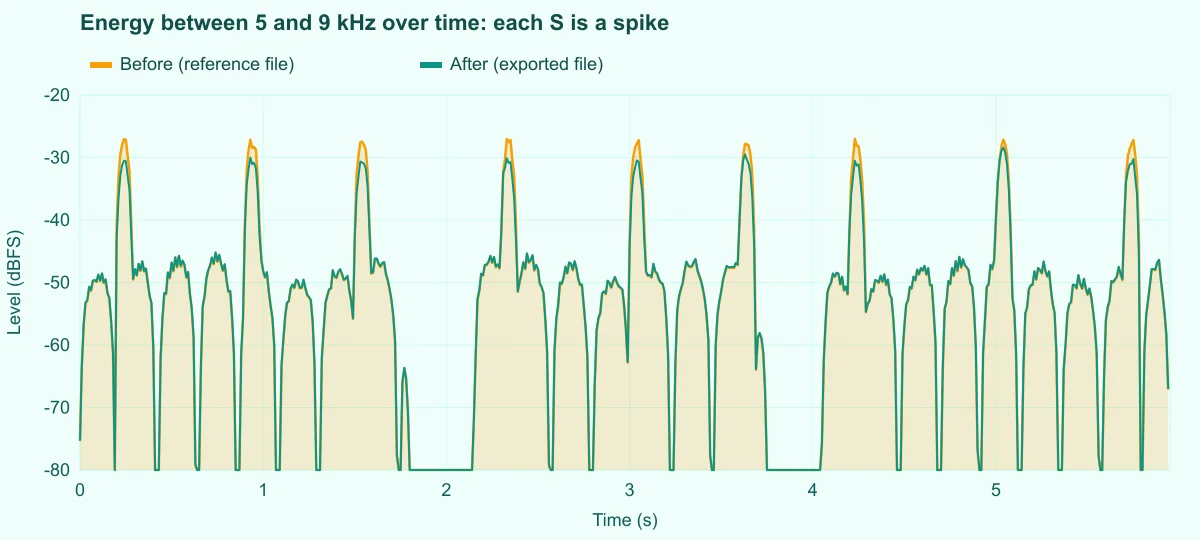
On a normal waveform you cannot see it, because the hiss is quiet compared to vowels. It shows clearly when you look only at the 5 to 9 kHz band over time, as in Figure 2: each S is a spike that rises 15 to 20 dB above the rest of the speech in that band.
Why sibilance happens
S and SH are made by pushing air through a narrow gap between the tongue and the teeth. The turbulence produces noise with most of its energy high up: roughly 4 to 6 kHz for deeper voices and 6 to 9 kHz for higher ones. Several things make it stand out in a recording:
- Microphones with a presence peak. Many USB and condenser microphones boost 5 to 10 kHz to sound clear, which also boosts the S.
- Speaking straight into the capsule. High frequencies are very directional. Turning the microphone slightly away from the mouth softens the S more than anything you can do afterwards.
- Compression and loudness processing. They raise the average level, and the short S bursts come up with it.
- Equalizer boosts for "air". A high shelf added for clarity lifts the S band too.
A static equalizer cut at 6 or 7 kHz would reduce the S, but it would also dull every other consonant and the natural breath of the voice for the whole recording. A de-esser cuts only when an S happens.
How the de-esser decides when to act
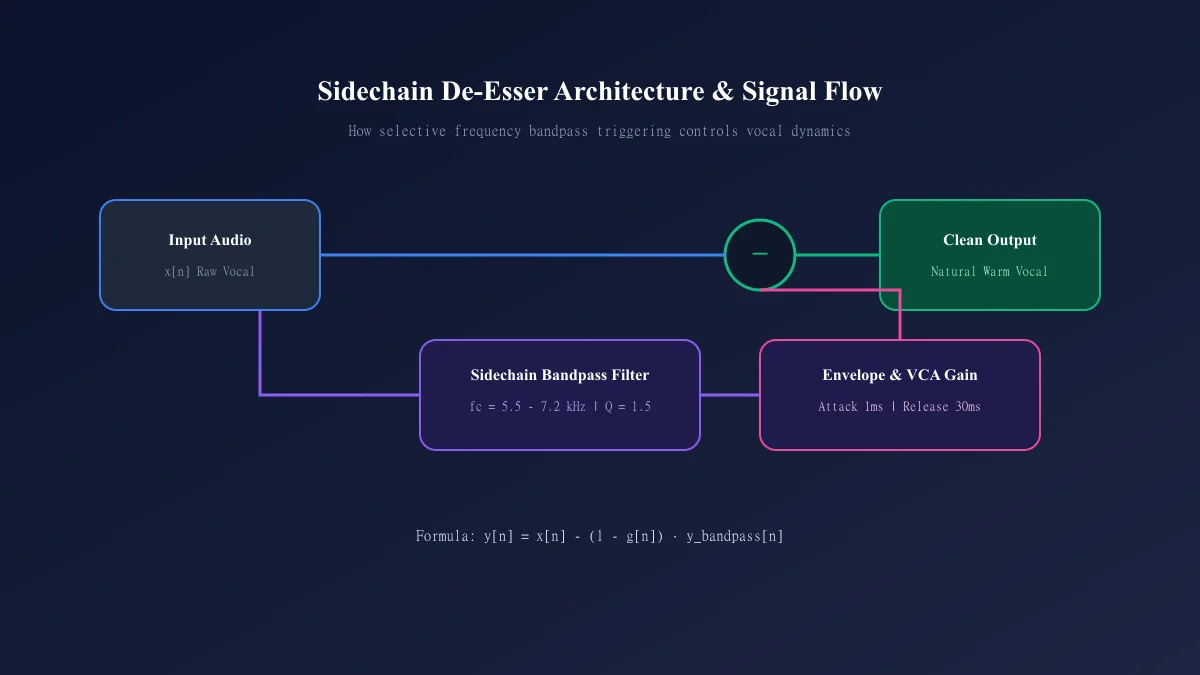
The de-esser runs the voice through a band-pass filter (Q of 1.5) centred on the voice profile you choose: 5.5 kHz for deeper voices, 7.2 kHz for brighter ones. It follows the level of that band with a fast envelope, 1 ms to react and 30 ms to let go, and compares it with the level of the whole signal. It acts only when two things are true: the band is above the detection threshold, and it carries more than about a third of the energy at that moment. Vowels fail the second test, so they pass untouched.
When it acts, it subtracts part of the band from the voice: output = input − (1 − gain) × band. The cut grows with how much the S dominates, up to 20 dB × the intensity. At the 50% of the Balanced preset the most it can remove is 10 dB, and typical S sounds get less, which is why the measured average is a few decibels.
How to de-ess a voice, step by step
The De-Esser page opens your file in the editor on the noise tools, with the De-Esser (Sibilance) tab already selected. It runs in your browser.
Step 1: Open the file and check the count
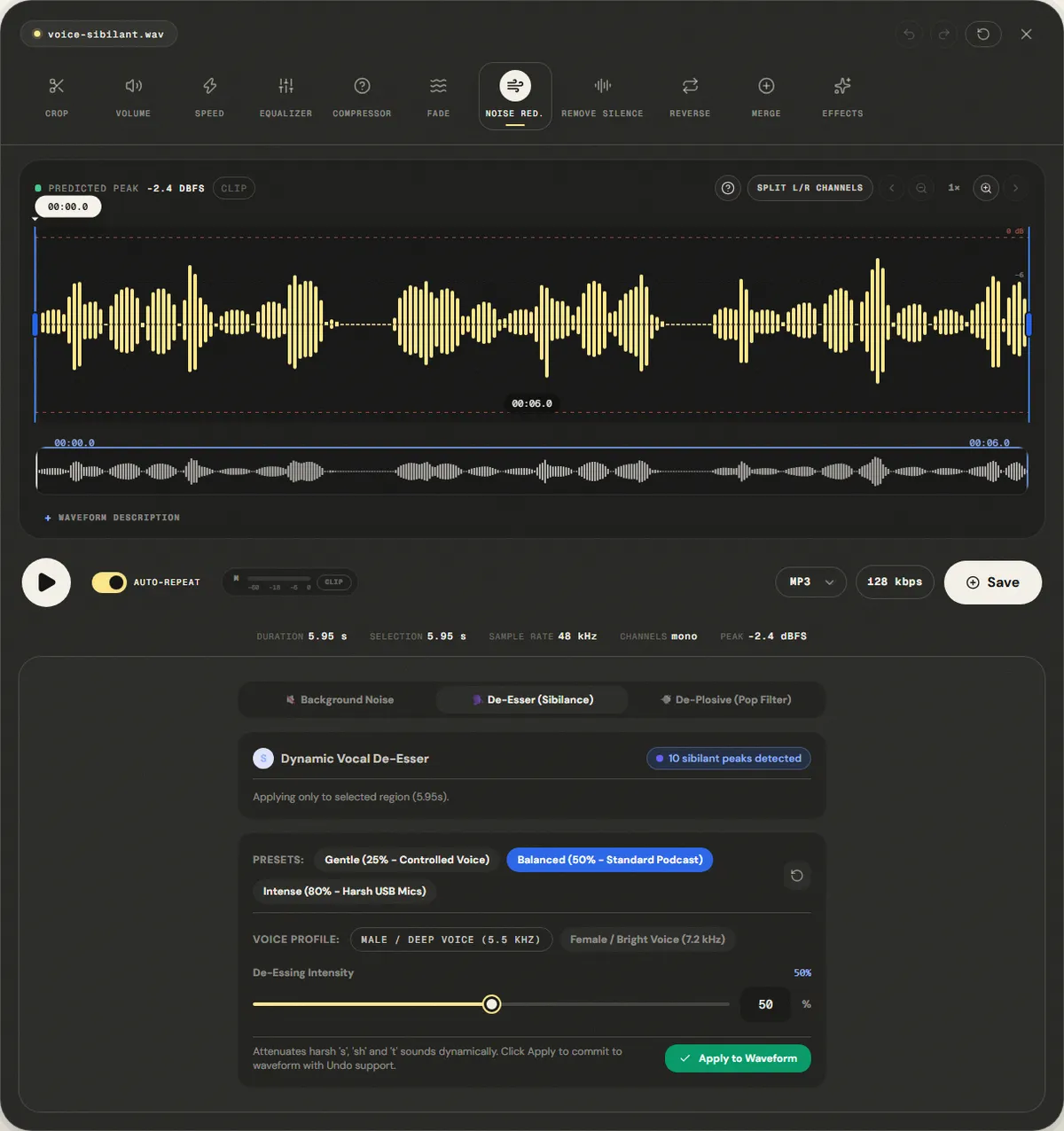
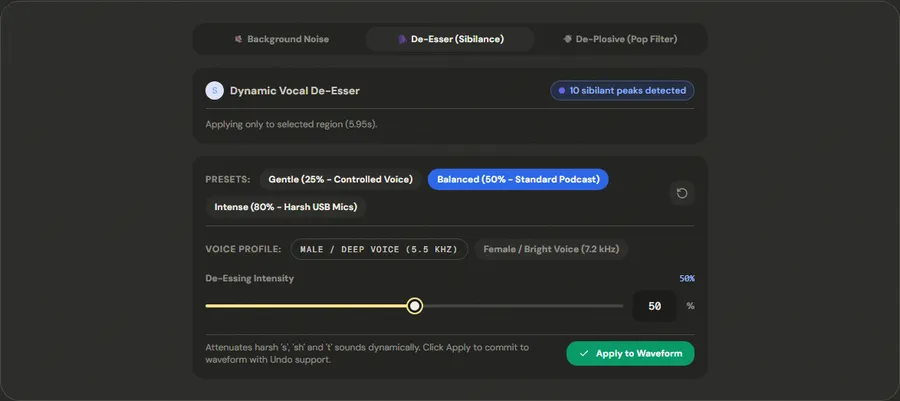
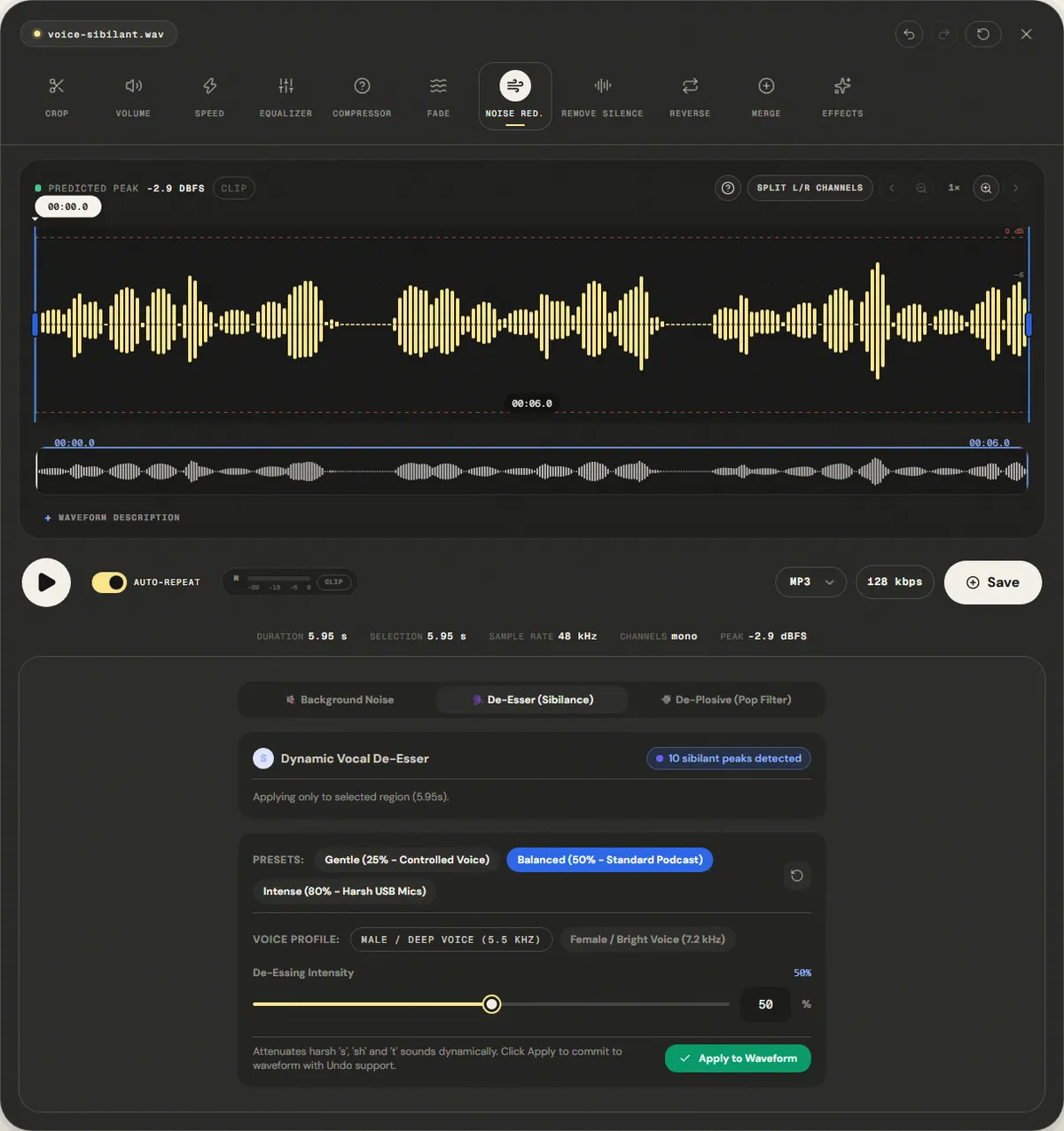
The card at the top, Dynamic Vocal De-Esser, shows how many sibilant peaks the analysis found; on our file it said "10 sibilant peaks detected" for nine inserted S bursts. The line below says which range will be processed. To limit the de-esser to part of the file, select it on the waveform first.
Step 2: Pick a preset and a voice profile
- Gentle (25% - Controlled Voice): for a voice that is mostly fine with a few sharp S sounds.
- Balanced (50% - Standard Podcast): the default and what we measured.
- Intense (80% - Harsh USB Mics): for bright microphones where S hurts at normal volume.
Then choose Male / Deep Voice (5.5 kHz) or Female / Bright Voice (7.2 kHz). The labels are a shortcut, not a rule: a deep female voice may sit better on 5.5 kHz and a bright male one on 7.2 kHz. Pick the one that makes the S quieter at the same intensity. De-Essing Intensity fine-tunes the amount from 0 to 100%.
Step 3: Listen and apply
Play a sentence full of S sounds on headphones at the level your audience will use. The S should stop stinging but still sound like an S. Then click Apply to Waveform. The waveform is updated and the change can be undone, so try two settings back to back if you are unsure.
Step 4: Then compress and export
De-ess before the compressor and before normalizing. Both raise the quiet parts of the voice; if the S sounds are still too loud at that point, they rise with everything else. Export from the editor when the order is done.
Measured example
We added nine bursts of noise centered at 6.5 kHz, about the length of an S, to the reference voice. The page opened the editor on the De-Esser tab; we clicked Apply to Waveform with the default Balanced preset and the 5.5 kHz voice profile.
Energy in the 5–9 kHz sibilance band fell 3.2 dB, while the 300 Hz–3.4 kHz speech band changed +0.2 dB.
| Measured | Before | After |
|---|---|---|
| Sibilance band 5–9 kHz | 26.8 dB | 23.6 dB |
| Speech band 300 Hz–3.4 kHz | 34.7 dB | 34.9 dB |
Reference file (before)
Exported file (after)
Balanced is deliberately moderate, so the S sounds get softer without a lisp. For harsher recordings, the Intense preset or the 7.2 kHz profile reduce more; listen for a lisp after each change.
Download the reference file (WAV) · Same test on the tool page · Measured on November 11, 2026
The result is deliberately moderate. Balanced reduced the S band by 3.2 dB on average and the individual S peaks by about 3 to 4 dB, without touching the vowels. That is enough to take the sting out of normal sibilance. For a voice where S sounds are 10 dB too loud, Intense or the other voice profile goes further, and that is exactly where the lisp risk starts, so compare each step by ear.
Troubleshooting
| What you hear or see | Likely cause | What to change |
|---|---|---|
| S sounds still pierce | Intensity too low, or the S sits above or below the chosen profile | Try Intense, or switch voice profile |
| The voice sounds lispy or the S sounds like TH | Too much reduction | Undo and use Gentle or a lower intensity |
| The whole voice sounds duller | Hiss that is constant, not sibilance | Use background noise reduction, or a gentle equalizer cut instead |
| Cymbals and hi-hats in the music got quieter | They share the S band | De-ess only the voice track, or select only the speech parts |
| Sibilance got worse after compression | Compression came first | De-ess before compressing and normalizing |
Limits and alternatives
A de-esser reduces sibilance; it does not fix a microphone that is harsh at every frequency or a recording full of hiss. It also cannot tell an S from a cymbal: on a mixed song it will duck both. Dedicated plugins add a split-band mode, look-ahead and frequency tracking that follows each S; this tool uses one fixed band per voice profile and reacts in real time, without looking ahead.
The biggest improvement comes before recording. Angle the microphone 15 to 30 degrees off the mouth, or point it at the chin, and keep a hand's width of distance. A foam windscreen does little for S; angle and distance do most of the work.
Frequently asked questions
What frequency is sibilance?
How much reduction is right?
Should I de-ess before or after compression?
Can I de-ess a full song?
Is the de-esser the same as a low-pass filter?
Sources and how this was tested
Tested on November 11, 2026 in Chromium 153 on Windows 11, with a production build of this site. Screenshots and measurements were made by the scripts in scripts/tool-evidence, from synthetic reference files anyone can download and repeat.