100% In-Browser · Private Voice Recorder
Free Online Voice Recorder
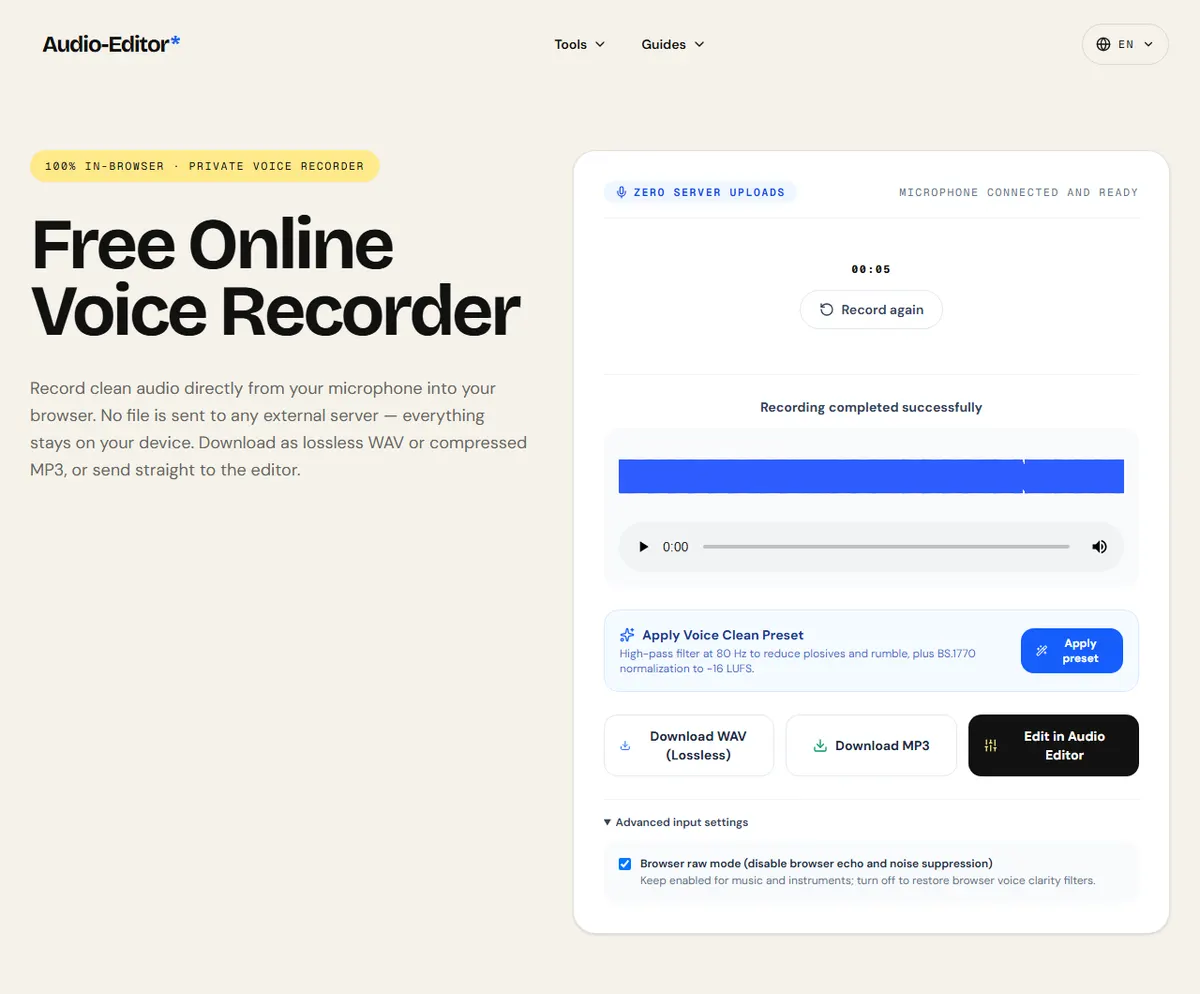
Record clean audio directly from your microphone into your browser. No file is sent to any external server — everything stays on your device. Download as lossless WAV or compressed MP3, or send straight to the editor.
Advanced input settings
( How it works )
How browser voice recording works
Connect and test
Select your input device. The live VU meter monitors input signal level and warns you of peak clipping in real time.
Record straight in the browser
Audio stream is captured directly into local memory using the Web Audio API without uploading a single byte.
Preview and clean
Listen immediately, apply the optional Voice Clean preset (80 Hz high-pass + −16 LUFS), and export as WAV or MP3.
Fine-tune in editor
Need to cut pauses, adjust volume or equalize? Open your recording in the full multi-tool editor with one click.
( Specifications )
Technical specifications
( Questions )
Frequently Asked Questions
Is my voice recording sent to a remote server?+
No. All recording, processing, and encoding happens entirely within your web browser tab via the Web Audio API. Your recordings are never uploaded to any remote server or cloud infrastructure.
What is the difference between downloading WAV and MP3?+
WAV stores uncompressed 16-bit PCM audio, preserving the original studio capture fidelity without compression artifacts. MP3 creates a smaller file ideal for podcasting, messaging, or quick sharing.
What does the 'Voice Clean' preset do?+
The Voice Clean preset applies an 80 Hz high-pass biquad filter to eliminate low-frequency desk vibrations, breathing thumps, and room rumble, followed by perceptual loudness normalization to −16 LUFS, the standard target for podcasts and spoken word.
Can I edit and cut the audio right after recording?+
Yes. Simply click 'Edit in Audio Editor' to seamlessly transport your recording into our waveform editor, where you can cut unwanted segments, adjust EQ, remove silence, or fade edges.
( Practical guide )
Recording clean speech in the browser
The recorder captures the microphone through the browser's MediaRecorder, in whatever compressed format the browser supports (WebM or OGG with Opus, or MP4). By default the browser also applies its own echo cancellation, noise suppression and automatic gain, which help in a video call but can make a voice-over sound pumped or watery. The recorder lets you turn them off.
Browser processing on or off?
| Laptop microphone in a noisy room, quick voice note | Leave the browser processing on |
|---|---|
| USB or XLR microphone, voice-over, podcast | Use raw mode, then clean it in the editor |
| Music or singing | Raw mode: noise suppression treats sustained notes as noise |
Worked example: a 2-minute voice-over
- Allow the microphone, open Advanced input settings, turn on Browser raw mode and speak a test sentence at your loudest. If the clipping warning appears, lower the input gain in the operating system.
- Record the take, about a hand's width from the microphone, slightly off-axis to soften P and B sounds.
- Apply the Voice Clean preset: an 80 Hz high-pass filter and normalization to −16 LUFS, a common podcast target.
- Download WAV to keep editing, or MP3 (192 kbps) to send it as it is.
Raw mode keeps the voice natural; the preset then removes low rumble and sets a consistent loudness.
Limits
- Quality depends on the microphone and on the browser's encoder; the recorder cannot add detail the microphone did not capture.
- The take lives in the tab until you download it. Closing or reloading the page loses it.
- Phones may pause recording when the screen locks or another app takes the microphone.
What the browser records, and how to get a good level
The recording format is chosen by the browser, not by the page: Chrome and Edge usually write WebM with the Opus codec, Firefox writes OGG with Opus, and Safari writes MP4. All of them are compressed, which keeps a one-hour recording small but means the file is already lossy before you edit it. If you plan heavy editing, open the recording in the editor and export the finished result once, rather than re-saving the compressed file several times.
The level is set in two places: the microphone gain in your operating system or audio interface, and your distance to the microphone. Aim for speech peaks around −12 to −6 dBFS. Lower than that and you will raise the noise floor when you normalize; higher and a laugh or a loud word will clip, which no setting in the browser can undo.
A practical starting point: 15 to 20 cm from the microphone, slightly off-axis to avoid P and B pops, in the room with the most soft surfaces (curtains, sofa, bed). A small, soft room helps more than any filter applied afterwards.
A one-minute checklist before a take: silence phone notifications and close apps that play sounds; wear headphones if browser processing is off, so the speakers do not leak back into the microphone; record ten seconds of normal speech and one loud phrase, and play them back. If the loud phrase crackles, move back or lower the gain; if the normal speech is faint and the room hiss is obvious, move closer rather than raising the gain.
Phone or laptop? A recent phone held 15 to 20 cm from the mouth, in a quiet room, often beats a laptop's built-in microphone, which sits next to a fan and a keyboard. A USB microphone beats both when it is placed close and off-axis. Whichever you use, record in the same place each time: listeners notice a change of room between episodes more than a small difference in microphone quality.
( Measured on a reference file )
Five seconds recorded from a test input
Chrome can replace the microphone with a file for testing. We fed it our 440 Hz reference tone at -6.0 dBFS, switched off the browser's voice processing in Advanced input settings so the tone would be left alone, recorded for 5 seconds and downloaded the WAV.
The recording lasts 4.98 s and holds the tone at 440.0 Hz and -6.0 dBFS, the level it went in at. The WAV is 48 kHz, 16-bit, and weighs 956.2 KB.
This checks capture, decoding and export, not sound quality: no real microphone and no room were involved. With the default settings the browser applies echo cancellation, noise suppression and automatic gain, which are made for speech and change a steady tone.
| Measured | Test input | Recording |
|---|---|---|
| Tone frequency | 440.0 Hz | 440.0 Hz |
| Tone level | -6.0 dBFS | -6.0 dBFS |
| Duration | 5 s | 4.98 s |
Download the reference file (WAV)The reference files are synthesized by this site (speech-like and music-like signals), so anyone can repeat the test. Measured on on this page. How we measure
( Field notes )
Recording and microphone setup
Capturing clean speech, reducing room noise, and file formats.
- ( 01 ) · 12 min read
How to Record Audio on Your Phone with Better Quality
Read - ( 02 ) · 8 min read
How to Remove Plosives and Mic Pops from Audio: Physics, Pop Filters & Dynamic De-Plosive
Read - ( 03 ) · 9 min read
How to Remove Mouth Clicks and Pops from Audio: Causes, De-Clicking & Vocal Hydration
Read