MP4 · MOV · WebM · MKV
Extract audio from video online
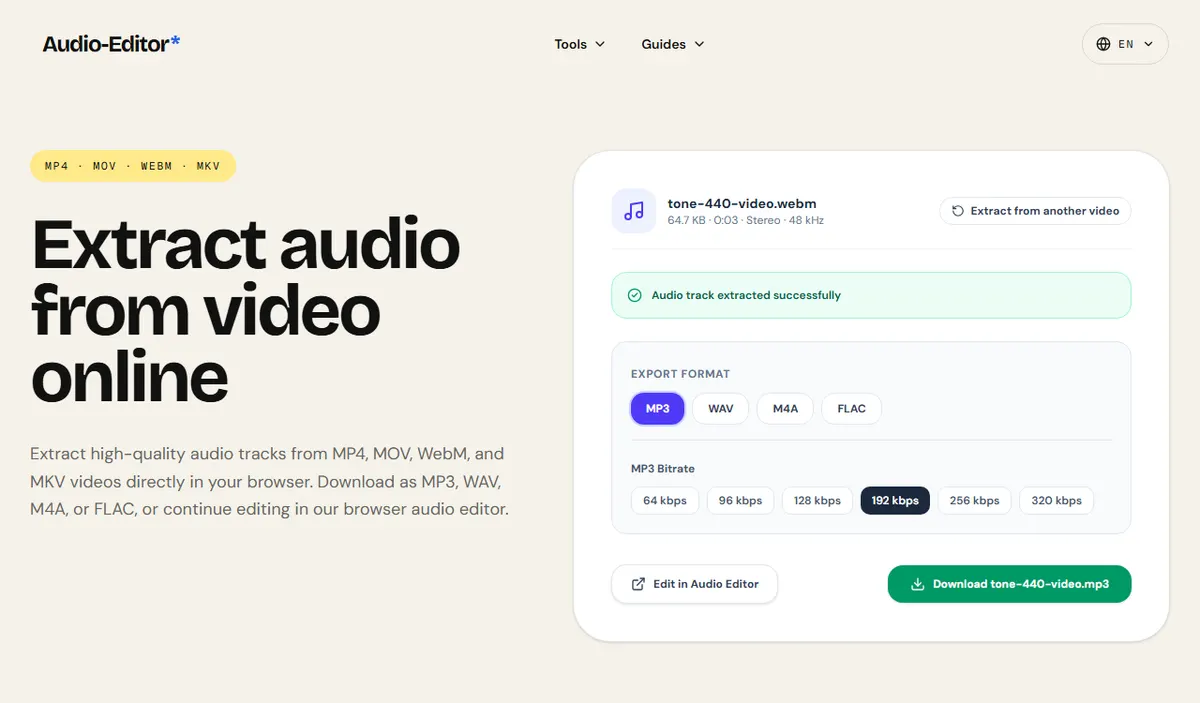
Extract high-quality audio tracks from MP4, MOV, WebM, and MKV videos directly in your browser. Download as MP3, WAV, M4A, or FLAC, or continue editing in our browser audio editor.
Select video file
or drag and drop a video file here
Supports MP4, MOV, WebM, MKV, AVI, 3GP up to 256 MB
( How it works )
How to extract audio from video
- 1
1. Select your video file
Select or drop any MP4, MOV, WebM, or MKV video. The video stays on your device — it is never uploaded to external servers.
- 2
2. The audio stream is extracted
Our client engine separates the audio stream from the video track in memory, displaying its duration, channel configuration, and sample rate.
- 3
3. Choose format & download or edit
Select your desired audio format (MP3, WAV, M4A, or FLAC). Download the audio file directly, or click 'Edit in Audio Editor' to cut, fade, equalize, or boost volume.
( The facts )
Extraction facts & format details
- Zero server uploads: video decoding and audio separation run entirely in your web browser tab.
- Extracts the primary audio stream from MP4, MOV, WebM, MKV, and AVI containers.
- Export to uncompressed 16-bit WAV preserves the full fidelity of the decoded audio stream.
- Export to MP3 allows bitrate selection up to 320 kbps for high-quality portable listening.
- One-click handoff lets you trim, remove background noise, or adjust loudness immediately in the studio editor.
( Questions )
Frequently Asked Questions
Does extracting audio reduce the sound quality?+
If you export to WAV or FLAC, no quality is lost beyond the original encoding of the video track. If you export to MP3 or M4A, compression is applied at your chosen bitrate (e.g. 192 or 320 kbps).
Is there a file size limit for video uploads?+
Because processing happens directly inside your browser memory to safeguard your privacy, files up to 256 MB are supported. For extremely long videos (e.g. several hours in 4K), memory depends on your device's available RAM.
What video formats are supported?+
You can extract audio from MP4, MOV (QuickTime), WebM, MKV (Matroska), AVI, and 3GP files.
Can I cut or boost the volume of the extracted audio right away?+
Yes. Simply click 'Edit in Audio Editor'. The extracted sound is passed directly into our full multi-tool waveform editor without needing to save and re-upload.
( Practical guide )
Getting the audio out of a video, step by step
A video file is a container: one stream of pictures and one or more streams of sound, packed together. Extracting the audio means reading only the first audio stream and writing it to an audio file. Nothing about the picture matters, so the job is fast, but the format you pick for the result decides the size and whether quality is lost a second time.
Which output format for which job
| You will edit the audio afterwards (cut, clean, mix) | WAV: no new compression, about 10 MB per minute in stereo |
|---|---|
| You want a small file to listen to or send | MP3 at 128 or 192 kbps: about 1 or 1.4 MB per minute |
| The audio goes to an Apple device or a video editor | M4A (AAC at 192 kbps) |
| You want to archive it without loss but smaller than WAV | FLAC: lossless, typically around half the WAV size, depending on the material |
Worked example: a 3-minute phone video for a podcast clip
- Drop the MP4 from the phone. The browser decodes it; if it cannot, the bundled FFmpeg reads the first audio track instead.
- Choose WAV, because the clip will be cut and cleaned before publishing, and download it.
- Open the WAV in the editor, cut the part you need and remove background noise there.
- Export the final clip once, as MP3 or M4A. Compressing only at the end avoids stacking two lossy encodes.
The phone's AAC audio is decoded once and compressed once more at the end, instead of twice before editing even starts.
What this tool does not do
- Only the first audio track is extracted. Videos with several languages or commentary tracks give you the first one.
- The audio is always re-encoded; there is no stream copy that keeps the original AAC bytes.
- Files are limited to 256 MB, and very long videos can run out of browser memory or time out in the FFmpeg fallback.
- Video links (YouTube and similar) are not supported: the tool works on files you already have and are allowed to use.
What happens to the file, and why long videos are hard
The browser first tries to decode the whole file with its own audio decoder. That works for most MP4, MOV and WebM files from phones and cameras. When it fails (an unusual codec or container), the page loads FFmpeg compiled to WebAssembly, about 30 MB the first time, and lets it read the first audio stream instead.
Either way, the audio ends up as uncompressed samples in memory: 4 bytes per sample, per channel. One hour of stereo at 48 kHz is 48,000 × 2 × 4 × 3,600 ≈ 1.4 GB, before the output file is even written. A 256 MB video of a few minutes is easy; a 256 MB file holding two hours of low-bitrate video is the one that runs out of memory.
So for long recordings, the duration matters more than the file size. If a long video fails, cut it into shorter pieces in a video editor first, or extract on a desktop browser, which usually has more memory available than a phone.
What is inside common video files: MP4 and MOV from phones and cameras almost always carry AAC audio, which every browser decodes. WebM files, including many screen recordings, carry Opus or Vorbis. MKV is a container that can hold almost anything, including surround formats such as AC-3 that browsers often cannot decode; those are the files that usually go to the bundled FFmpeg. If FFmpeg cannot read the track either, the page says so instead of producing an empty file.
A quick way to judge the result: play the first and last ten seconds of the extracted file next to the video. Same words, same moment, same loudness means the track was read correctly. A different language or commentary means the video has several audio tracks and the first one is not the one you wanted; in that case a desktop tool that lets you pick the track is the better option.
( Measured on a reference file )
A 440 Hz tone pulled out of a WebM video
The reference clip is a short WebM video (VP8 picture, Opus sound, 66.2 KB) recorded in the browser with a 440 Hz tone at -12.0 dBFS as its soundtrack. We dropped it on this page and exported the audio as WAV and as MP3.
The extracted WAV carries the same tone: 440.0 Hz at -12.0 dBFS, 3.12 s long, at 48 kHz. The picture is discarded; only the audio track is decoded.
The WAV weighs 599.1 KB against 66.2 KB for the whole video, because PCM is not compressed; the 192 kbps MP3 has 75.5 KB. The soundtrack was already Opus, a lossy codec, so the WAV keeps what the video had, not what existed before it was encoded. MP4, MOV and other codecs were not measured in this run.
| Measured | In the video | Extracted WAV |
|---|---|---|
| Tone frequency | 440.0 Hz | 440.0 Hz |
| Tone level | -12.0 dBFS | -12.0 dBFS |
| File size | 66.2 KB | 599.1 KB |
Download the reference file (WebM)The reference files are synthesized by this site (speech-like and music-like signals), so anyone can repeat the test. Measured on on this page. How we measure
( Field notes )
Audio streams inside video containers
Understanding audio extraction, bitrates and loss.
- ( 01 ) · 11 min read
MP3, WAV, FLAC, AAC: Which Audio Format Should You Use?
Read - ( 02 ) · 8 min read
How to Make a Custom Ringtone: iOS M4R vs Android MP3, Trimming & Audio Physics
Read - ( 03 ) · 15 min read
How to Edit an Audio File Step by Step: A Browser Workflow
Read