Quick answer
A good ringtone is recognisable in two seconds, loud enough to hear in a pocket and short enough to loop without an awkward jump. This guide covers how to choose the clip, the format each phone expects, how to make it in the browser step by step, what our test measured, and how to install it on iPhone and Android.
Choosing the clip
The first two seconds decide whether a ringtone works. A song that opens with a quiet intro makes a poor ringtone from the start of the file; the same song started at the chorus works well. Three things to look for:
- A strong, recognisable entry: the first beat of a chorus, a riff, a vocal hook.
- Even loudness: a clip that starts quiet and gets loud will be missed in a noisy place. On the waveform, look for a stretch where the wave is tall and dense from the first bar.
- A clean end: ringtones loop until you answer. A clip that ends at the end of a phrase, with a short fade, loops without a jump.
Formats and limits, phone by phone
| Phone | Format | Length | How it gets onto the phone |
|---|---|---|---|
| iPhone | .m4r (AAC audio in an MPEG-4 file) | Up to 40 s | Finder (Mac), iTunes or the Apple Devices app (Windows), or GarageBand on the phone |
| Android | .mp3 (also .ogg, .m4a on most phones) | No fixed limit | Copy to the Ringtones folder or pick the file in the sound settings |
An M4R is the same AAC audio as an M4A file with a different extension, which is what tells iOS to list it as a ringtone. Android phones accept ordinary audio files, and most let you pick one straight from the file browser.
How to make a ringtone, step by step
The Ringtone Maker page opens your song in the editor with the ringtone panel underneath. Processing runs in your browser; the song is not uploaded.
Step 1: Open the song and find the start
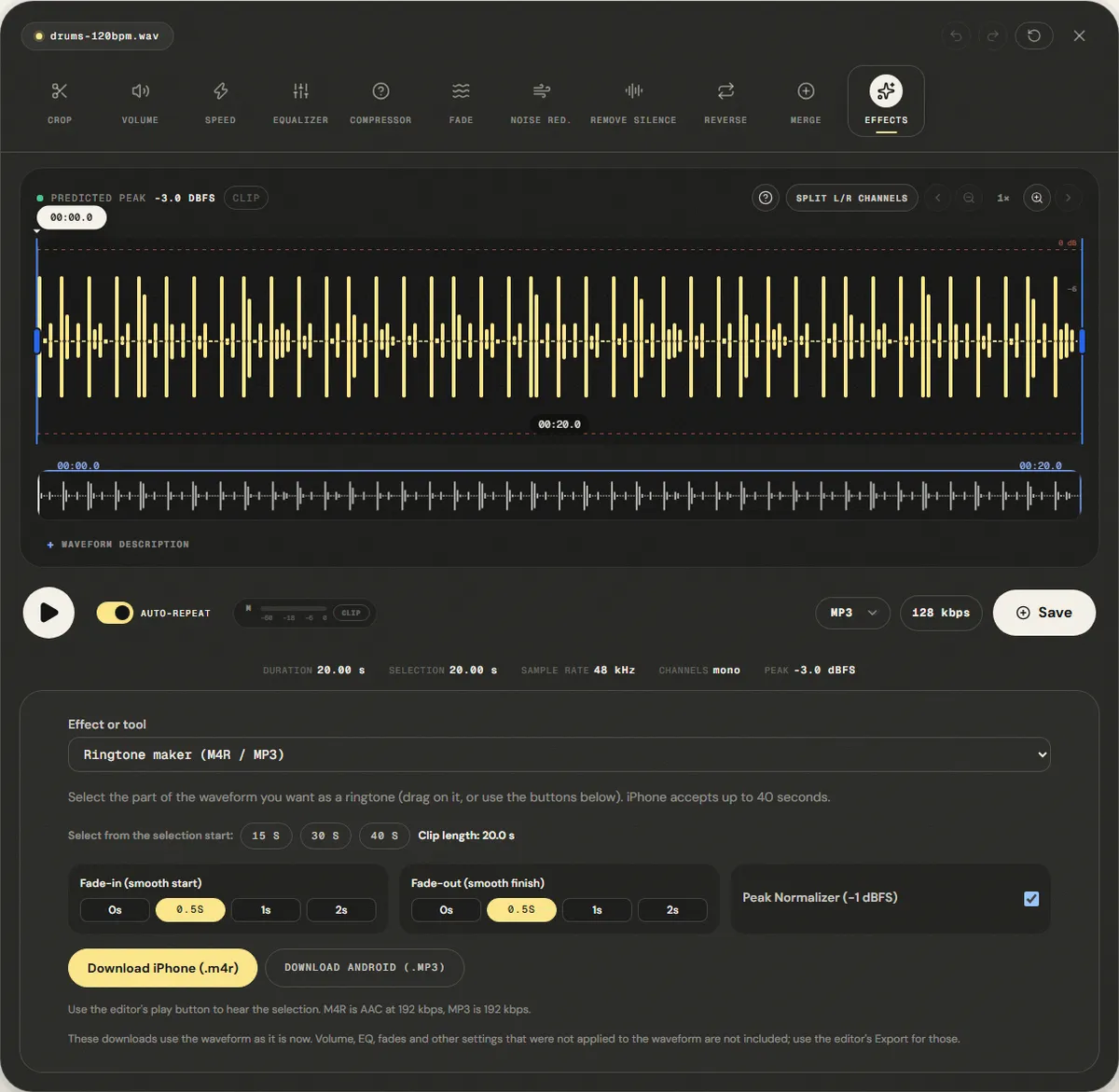
Drop the file on the page. Play it and drag a short selection on the waveform that starts just before the moment you want the ringtone to begin; the length buttons then extend it from that start. If you open a song longer than 40 seconds with all of it selected, the editor sets a 30-second selection from the start for you, so you always begin under the iPhone limit.
Step 2: Set the length and the fades
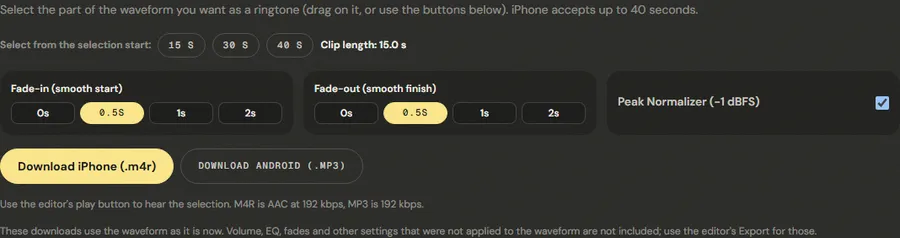
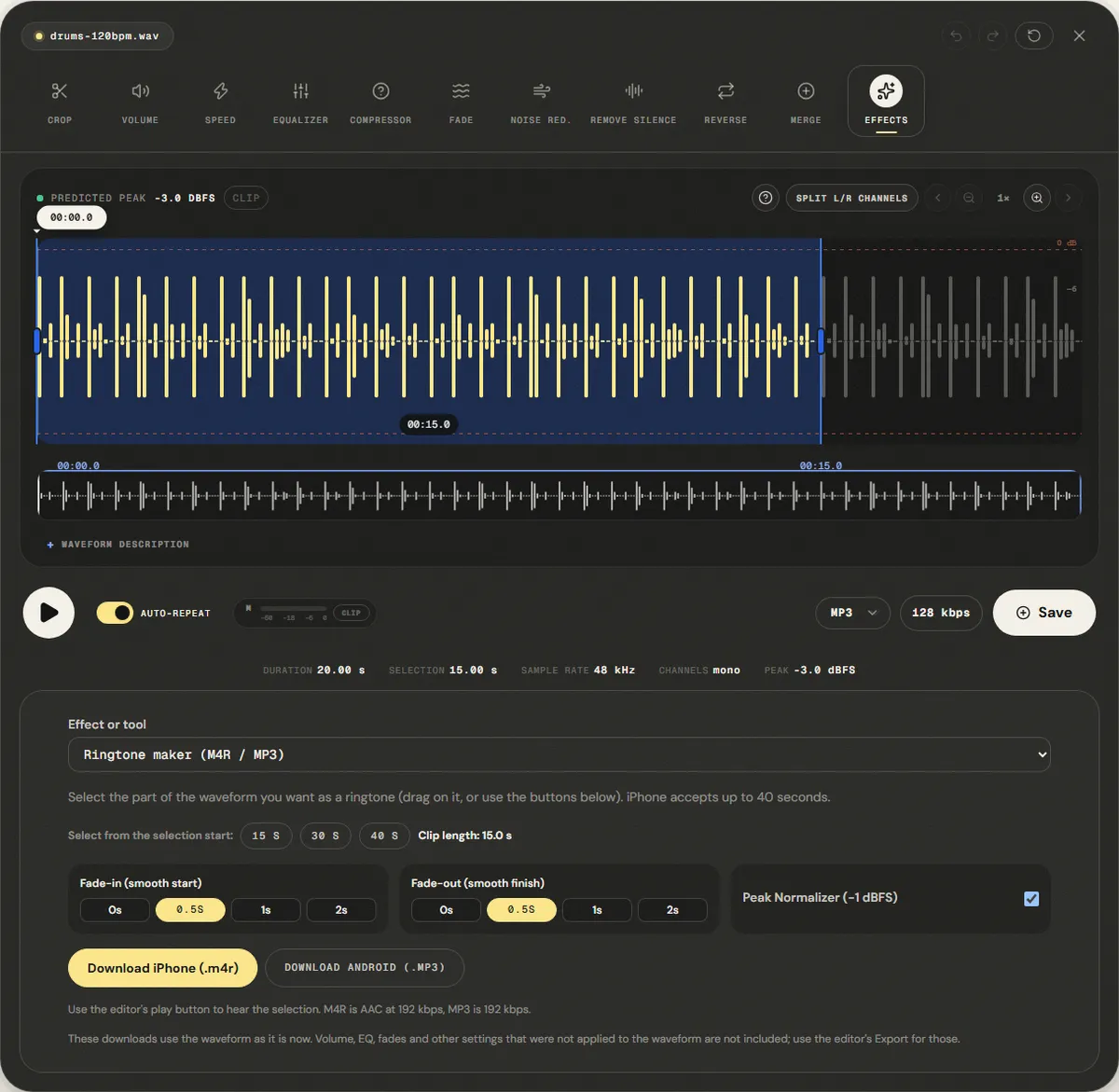
- 15 s, 30 s or 40 s extend the selection from its start. You can also drag the ends of the selection on the waveform.
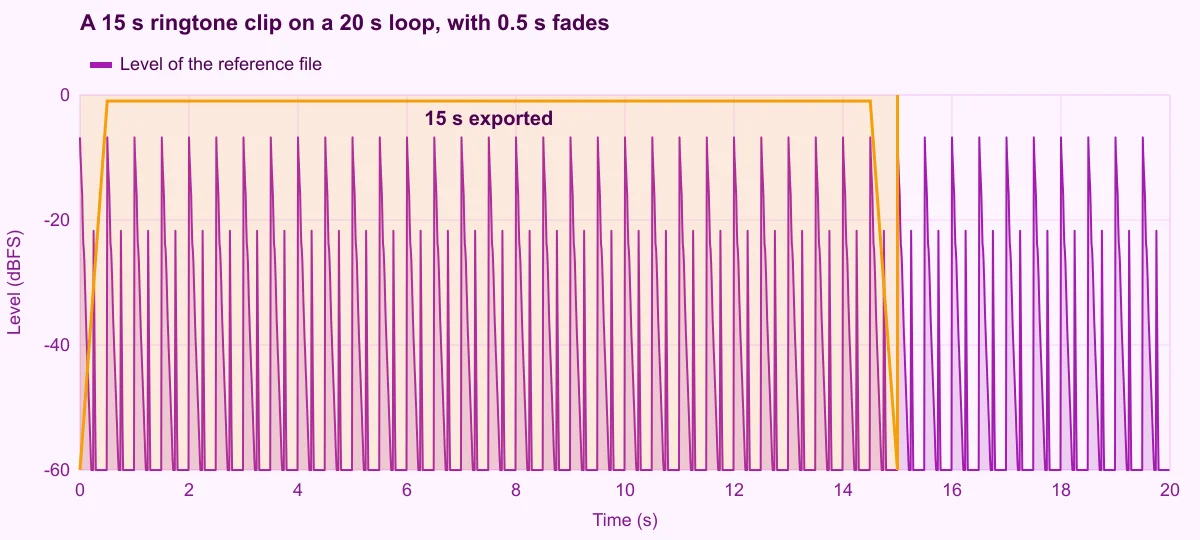
- Fade-in (smooth start) and Fade-out (smooth finish): 0, 0.5, 1 or 2 seconds, 0.5 s by default, with an S-shaped curve. Use 0 or 0.5 s on a clip that starts on a beat, so the first hit is not lost.
- Peak Normalizer (−1 dBFS): on by default. It raises the clip until its loudest peak is 1 dB under full scale, so it rings as loud as the format allows.
Step 3: Download
Click Download iPhone (.m4r), Download Android (.mp3), or both. Both are encoded at 192 kbps. If the selection is longer than 40 seconds, only the first 40 are exported.
Installing the ringtone
iPhone
- Connect the iPhone to a computer. On a Mac open Finder; on Windows open iTunes or the Apple Devices app.
- Drag the .m4r file onto the iPhone in the sidebar (in iTunes, onto the Tones section).
- On the iPhone, go to Settings › Sounds & Haptics › Ringtone and pick it from the top of the list.
Without a computer, GarageBand on the iPhone can import an audio file and share it as a ringtone; it re-encodes the clip on the phone.
Android
- Copy the MP3 to the phone, into the Ringtones folder if there is one (a USB cable, a cloud drive or a download all work).
- Open Settings › Sound (on Samsung: Sounds and vibration) › Ringtone and choose the file, or use the + button to add it from storage.
Beyond songs: voice ringtones and per-contact tones
Some of the most useful ringtones are not songs. A short voice recording ("It's Mum calling") or a distinctive sound for one contact tells you who is calling without looking at the phone. The same tool works:
- Record the phrase with the voice recorder, or use any audio you have.
- Open it on the Ringtone Maker page and select only the phrase, with half a second of silence before it.
- Keep Peak Normalizer (−1 dBFS) on: speech is quieter than music, and the normalizer brings it up to the same peak level.
- Set a 0.5 s fade-out so the loop does not cut off the last word.
On iPhone, assign it under the contact's Ringtone setting; on Android, open the contact, then its menu, and choose Set ringtone. For a phrase shorter than a few seconds, add a second or two of silence at the end so it does not repeat too fast. The same steps make a custom notification or alarm sound: keep it short and leave the fades on, so it starts and stops cleanly.
Measured example
We opened a 20-second drum loop, pressed the 15 s button to select a 15-second clip on the waveform, kept the default fades and normalizer, and downloaded both files.
The Android MP3 is 360.6 KB, what 192 kbps for 15 s predicts (360.0 KB). The iPhone M4R is 224.6 KB: the AAC encoder needed fewer bits than its 192 kbps target for this simple loop.
| Measured | Format | Size |
|---|---|---|
| iPhone (.m4r) | AAC | 224.6 KB |
| Android (.mp3) | 192 kbps | 360.6 KB |
The M4R opens as an MPEG-4 file and stays under the 40-second limit, but we have not tested installing it on an iPhone in this run.
Download the reference file (WAV) · Same test on the tool page · Measured on November 11, 2026
The MP3 size is almost exactly the theory: 192,000 bits per second × 15 seconds ÷ 8 = 360 KB. The M4R is smaller because the AAC encoder found this simple loop easy to describe and used fewer bits than its target; on a full song it lands much closer to the MP3. A 40-second ringtone at 192 kbps is under 1 MB in either format.
Troubleshooting
| What you hear or see | Likely cause | What to change |
|---|---|---|
| The ringtone does not appear on the iPhone | File copied as a song, longer than 40 s, or wrong extension | Check the .m4r extension and the length; drag it onto the device, not the music library |
| It is too quiet in a pocket | Quiet section, or the normalizer was off | Pick a denser part of the song and keep Peak Normalizer on |
| The first beat is missing | Fade-in too long for a clip that starts on a hit | Set Fade-in to 0 or 0.5 s |
| Volume or EQ changes are not in the download | Downloads use the waveform as it is | Apply effects to the waveform before downloading |
| It jumps when it loops | The clip ends in the middle of a phrase | End at a phrase boundary and use a 1–2 s fade-out |
Limits
Both formats are lossy, so start from the best copy of the song you have; a ringtone made from a 128 kbps MP3 cannot sound better than that MP3. The panel downloads the waveform as it is: volume, EQ or effects you set in the editor but did not apply are left out. And the site cannot install the ringtone for you: iOS only accepts ringtones through Finder, iTunes, the Apple Devices app or GarageBand. Use songs you own or have the rights to; tracks protected by DRM cannot be opened.
Frequently asked questions
How long can an iPhone ringtone be?
What is the difference between M4R and M4A?
Does Android need M4R?
How big is a ringtone file?
Can I make a notification sound the same way?
Sources and how this was tested
- Apple Support: Change iPhone sounds and vibrations (ringtones)
- Apple Support: GarageBand User Guide for iPhone (sharing a song as a ringtone)
Tested on November 12, 2026 in Chromium 153 on Windows 11, with a production build of this site. Screenshots and measurements were made by the scripts in scripts/tool-evidence, from synthetic reference files anyone can download and repeat.