Quick answer
Whether a file should be stereo or mono sounds like a format detail, but it decides whether a podcast plays in one ear, whether a mix collapses on a phone speaker, and how big an export is. This guide explains the difference, how to spot the common channel problems, how to fix them in the browser, and what our test measured.
Stereo, mono and what each is for
In a mono file there is one signal. Every speaker plays the same thing, and the sound appears in the centre on headphones. In a stereo file the two channels can differ: an instrument louder on the left sounds as if it is on the left, and small timing and level differences create a sense of width and space.
| Material | Better as | Why |
|---|---|---|
| Podcast, voice-over, audiobook, interview | Mono | One voice has no width to show; mono plays the same in both ears |
| Music, ambience, sound design | Stereo | Placement and space are part of the sound |
| Phone notification, ringtone, voice message | Either; check in mono | Phone speakers often play the sum of both channels |
For uncompressed files the size difference is exact: a minute of 16-bit 44.1 kHz WAV is about 5.3 MB in mono and 10.6 MB in stereo. Compressed formats narrow the gap, because encoders store the two channels of a near-mono file very efficiently. One detail about this editor: its mono operations write the same signal to both channels, and exports keep two channels. The file does not get smaller; what changes is that every listener hears the voice in both ears.
How to recognize the common channel problems
- Voice in one ear only. A mono microphone or a camera input recorded into one side of a stereo file. On the waveform, one channel is flat. This is the most common problem with USB interfaces, where input 1 is the left channel.
- Channels out of phase. One channel is inverted, often from a miswired cable or a microphone pair. In stereo it sounds wide and vague; summed to mono, the centre disappears.
- Left and right swapped. Hard to hear on voice, obvious on music and video where the picture and sound disagree.
- "Fake" stereo. Two identical channels: a mono file stored as stereo. Harmless, but twice the size for nothing.
Why summing to mono can cancel sound: phase and pan law
A mono mix adds the two channels together. If they are similar, the sum is louder; if one is inverted, they subtract. Two identical channels summed give a signal 6 dB louder; two opposite channels give silence. Real stereo sits between, and the editor measures where with the phase correlation, a number from +1 (identical) to −1 (opposite). Above 0.2 it reports the file as safe to mix to mono; between −0.3 and 0.2, a wide stereo that may sound a little thinner; below −0.3, channels so out of phase that a mono mix will cancel sound, and it suggests inverting one channel first.
The pan law decides how much each channel is lowered before adding them, so the mono result is not louder than the original:
- −3 dB (equal power): right for typical stereo music, whose channels are partly different.
- −6 dB (safe for identical channels): right when both channels carry the same signal, so the sum cannot clip.
- 0 dB: no reduction; only for channels you know are quiet.
Phase matters beyond this tool. The karaoke result of our vocal remover is deliberately out of phase between channels, which is why it should be checked in mono before it plays on a phone.
How to fix channels, step by step
The Stereo to Mono page opens the file in the editor with Stereo to mono & channels selected in the Effect or tool menu. It runs in your browser.
Step 1: Open the file and read the panel
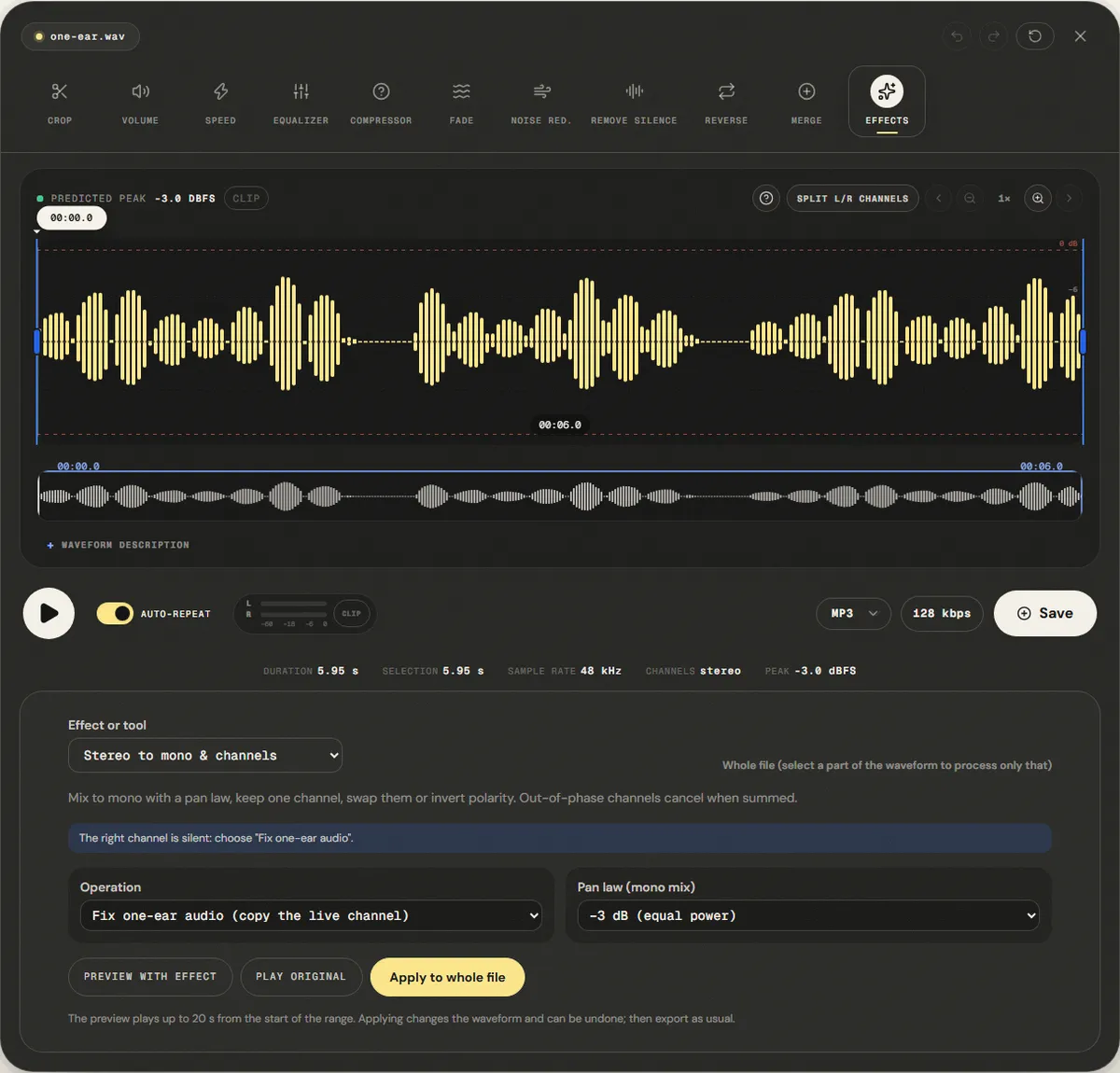
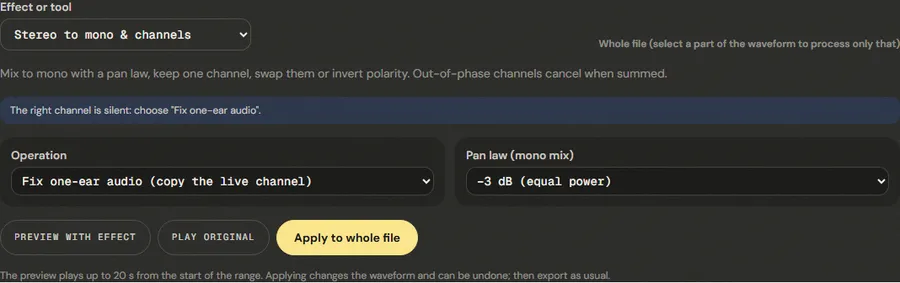
The panel checks the channels as the file opens. If one channel is silent it says so and picks the fix by itself; on our file it read "The right channel is silent: choose 'Fix one-ear audio'." Otherwise it reports the phase correlation and whether a mono mix is safe.
Step 2: Choose the operation
- Mono mixdown (L + R): one signal from both channels, using the pan law you choose.
- Fix one-ear audio (copy the live channel): copies the channel with sound into the silent one.
- Left channel only / Right channel only: keep one side, for example when the other has only noise or a second microphone you do not want.
- Swap channels (L ↔ R): for reversed left and right.
- Invert left polarity / Invert right polarity: for a channel recorded upside down; check the correlation reading afterwards.
Step 3: Apply and export
Listen with Preview with effect on headphones, then click Apply to whole file and export. The result has two identical channels; if you need a true one-channel file, convert it with a tool that writes mono files.
A 30-second mono check for any mix
Many listeners hear your audio through one speaker: a phone, a laptop with a single driver, a smart speaker. A quick check catches problems before they do:
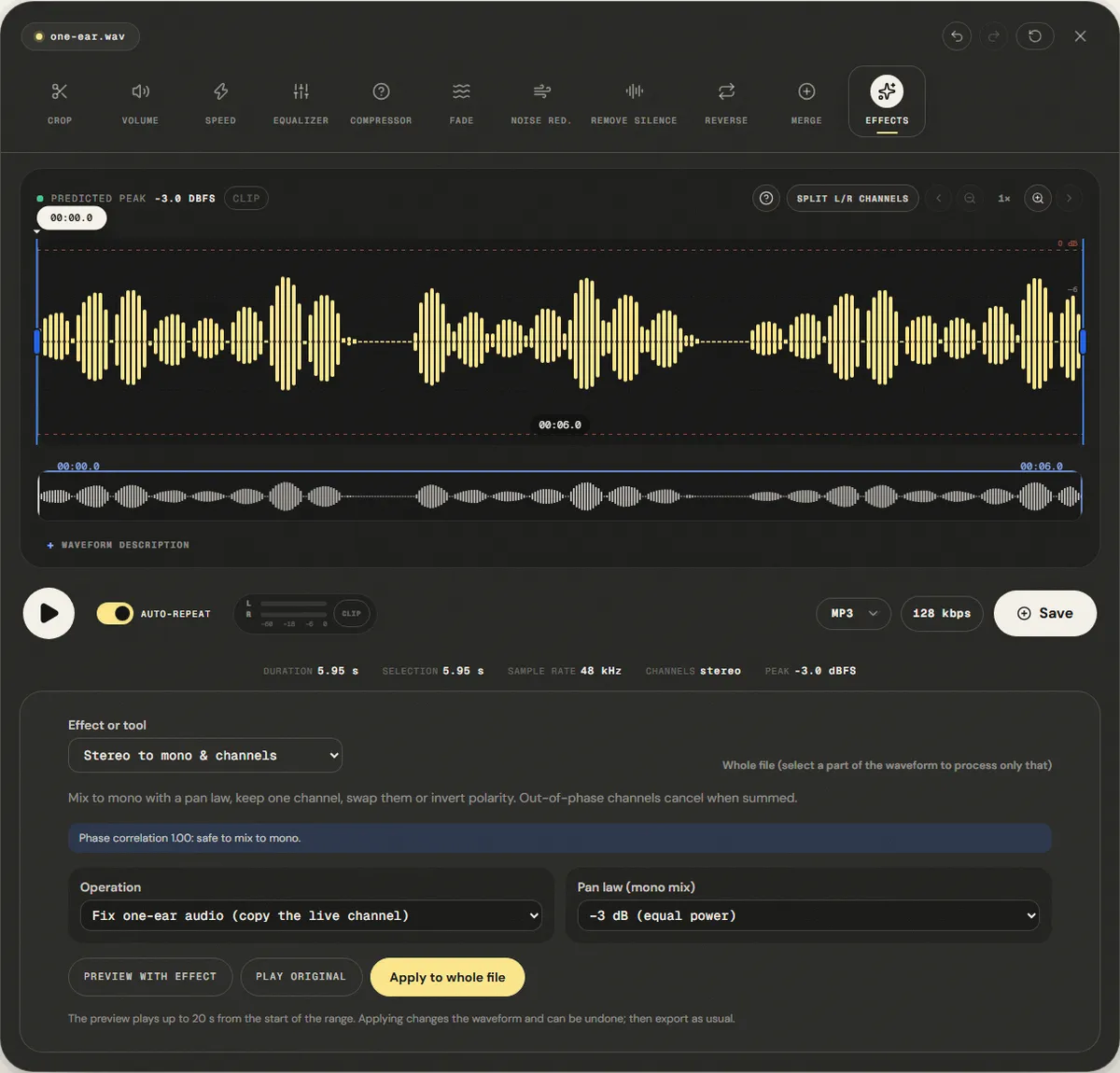
- Open the file and read the correlation line in the panel. Above 0.2, a mono mix is safe.
- Choose Mono mixdown (L + R) with the −3 dB pan law and play the chorus with Preview with effect, without applying it.
- Listen for parts that disappear or get much quieter: a vocal that drops, a hollow-sounding guitar, reverb that vanishes. Those are the parts that are out of phase.
- If something disappears, look for its source: an inverted channel, a stereo widening effect, or a karaoke track from the vocal remover.
Nothing has to be applied for the check; the preview leaves the file untouched.
Measured example
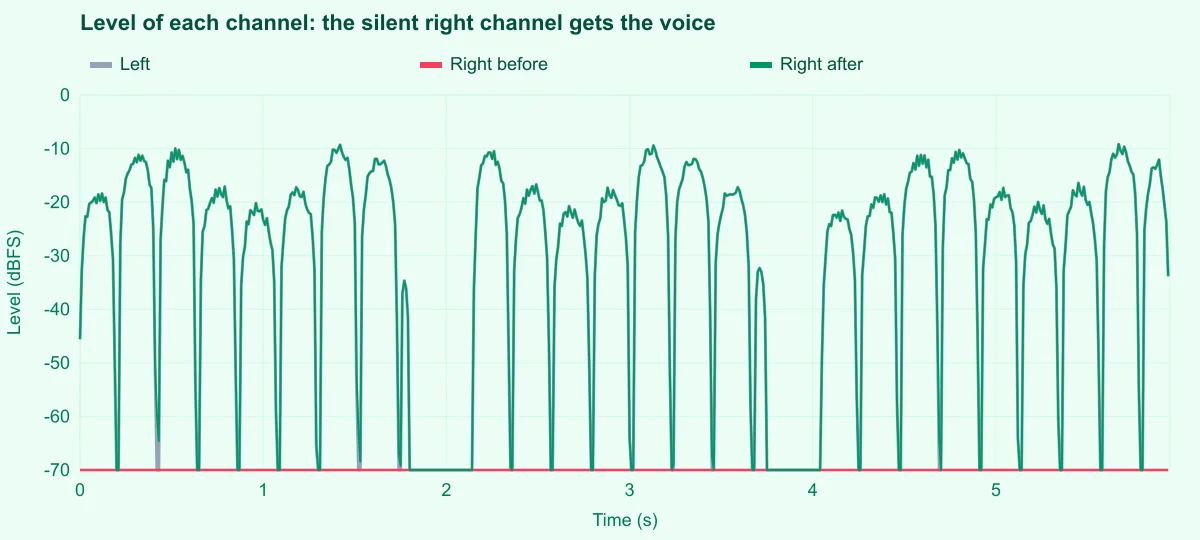
We recorded the reference voice on the left channel only, with the right channel silent, the result of a mono microphone plugged into a stereo input. The panel saw the dead channel and selected Fix one-ear audio by itself; we applied it.
The right channel went from -93.2 dBFS (silence) to -17.5 dBFS, the same as the left at -17.5 dBFS. The voice now sits in the center on headphones.
| Measured | Before | After |
|---|---|---|
| Left channel (RMS) | -17.5 dBFS | -17.5 dBFS |
| Right channel (RMS) | -93.2 dBFS | -17.5 dBFS |
Reference file (before)
Exported file (after)
This copies the live channel; it does not create stereo. If both channels have different sounds, a mono mixdown is the right operation instead.
Download the reference file (WAV) · Same test on the tool page · Measured on November 11, 2026
Troubleshooting
| What you hear or see | Likely cause | What to change |
|---|---|---|
| Voice only in the left ear | Mono microphone on input 1 of a stereo recording | Fix one-ear audio, or Left channel only |
| The mono mix sounds hollow or loses the centre | One channel is inverted | Invert one channel's polarity, check the reading, then mix to mono |
| The mono mix is too loud or clips | Identical channels summed with a −3 dB or 0 dB law | Use the −6 dB pan law |
| Instruments appear on the wrong side | Channels swapped | Swap channels (L ↔ R) |
| One channel has hiss but no voice | A second, unused input recorded noise | Keep only the channel with the voice |
Limits and alternatives
These tools move, copy and combine channels; they do not create stereo from mono. A voice copied to both sides is still mono, only playing in both ears. Making a mono recording sound wide needs reverb, delay or a stereo widener, which adds something new rather than revealing what was there. The analysis looks at the whole file: if channels are only out of phase in one section, select that section and process it separately.
When recording, set a mono microphone on a mono track if your software allows it, or record into one channel and convert as above. For two people on two microphones, keep both channels while editing so you can adjust each voice, then mix to mono at the end.
Frequently asked questions
Is stereo better quality than mono?
Why does my podcast play only in one ear?
What pan law should I use?
What does phase correlation mean?
Can I turn mono into real stereo?
Sources and how this was tested
Tested on November 11, 2026 in Chromium 153 on Windows 11, with a production build of this site. Screenshots and measurements were made by the scripts in scripts/tool-evidence, from synthetic reference files anyone can download and repeat.