Quick answer
Splitting is one of the most practical edits there is: a two-hour lecture into lessons, an album rip into tracks, a list of recorded words into separate files for an app. This guide explains when to use each mode, how silence detection decides where to cut, how to do it in the browser, what our test measured and how to work around the cases where it fails.
Equal length or silence: which one
| You want to… | Mode | Setting to start with |
|---|---|---|
| Get under an upload or attachment size limit | Equal Duration | Work out the length from the size (below) |
| Turn a long recording into listenable chunks | Equal Duration | 10 or 15 minutes |
| Separate songs in an album recorded as one file | Detect Silence Gaps | Minimum pause 1 or 1.5 s |
| Cut phrases, word lists, sound effects | Detect Silence Gaps | Minimum pause 0.4 or 0.6 s |
Equal length ignores what is being said, so a cut can fall in the middle of a word. Silence detection never does that, but it depends on the recording having real pauses: a noisy room or continuous music gives it nothing to work with.
How silence detection decides where to cut
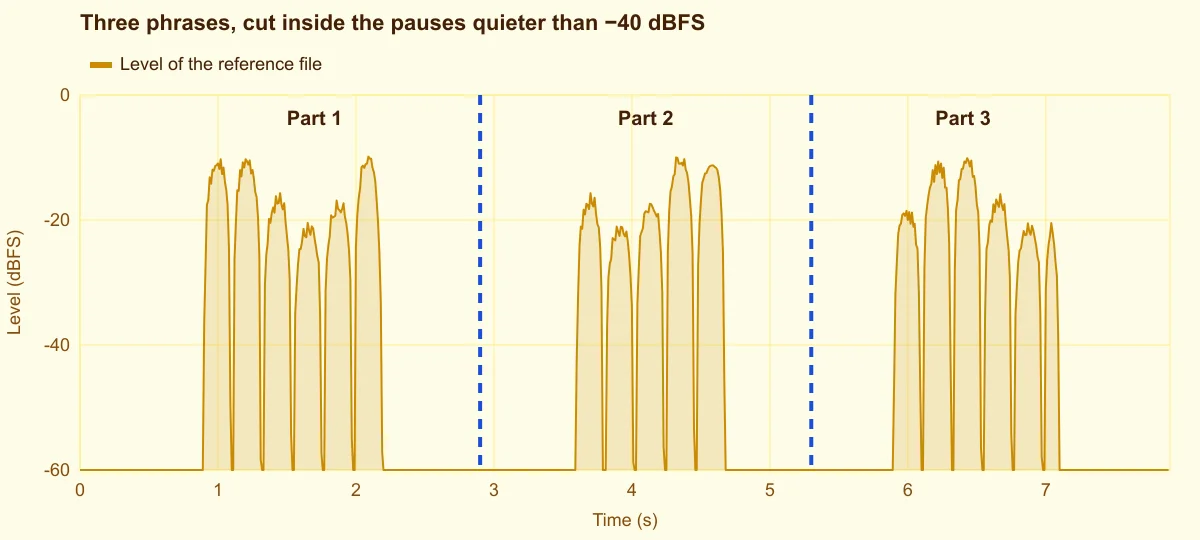
The detector measures the level of the recording in short windows and marks every stretch quieter than the Silence Threshold that lasts at least the Minimum Silence Duration. Each qualifying pause becomes a boundary, and the cut falls inside it. Two consequences follow:
- Silence is shared, not removed. The end of one part and the start of the next both keep a piece of the pause, so each part starts and ends naturally. To shorten the pauses, use silence removal instead.
- Short pauses are ignored on purpose. A breath between words lasts 0.1 to 0.3 s; the default 0.6 s minimum keeps those inside a phrase.
At every cut the editor adds a 5 ms fade out and fade in. A cut in the middle of a waveform jumps from one value to zero, which sounds like a click; 5 ms is too short to hear as a fade but long enough to smooth that jump.
How to split audio, step by step
The Split Audio page opens your file in the editor with the split panel underneath. It runs in your browser.
Step 1: Choose the mode
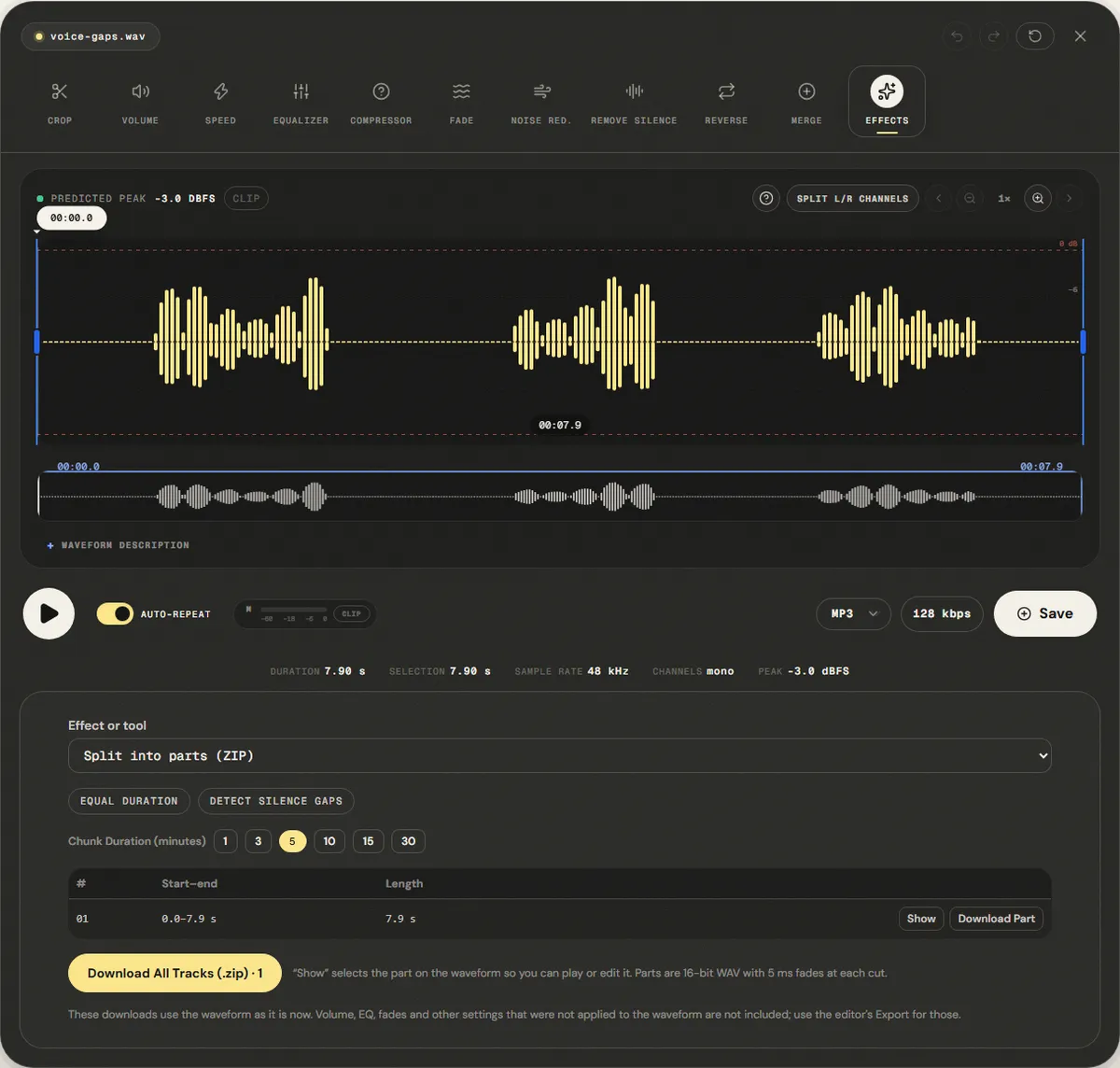
Equal Duration shows Chunk Duration (minutes) with 1, 3, 5, 10, 15 and 30 minutes. Detect Silence Gaps shows the Silence Threshold (dBFS) slider, from −55 to −25 dB, and the Minimum Silence Duration buttons: 0.4, 0.6, 1 and 1.5 seconds.
Step 2: Check the list of parts
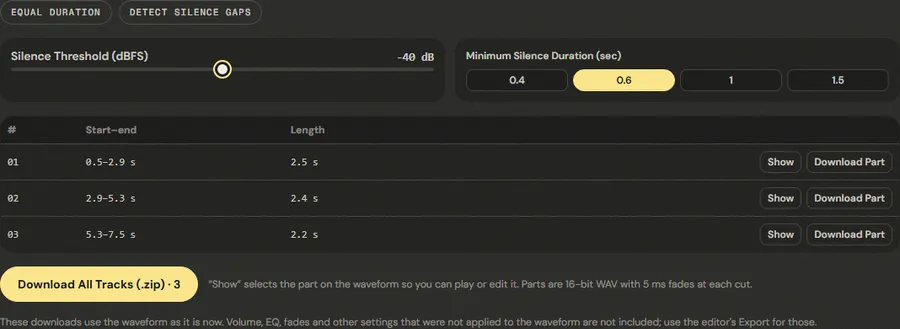
The table updates as you change the settings. If it shows one long part, the pauses are not quiet enough: raise the threshold toward −30 dBFS. If it shows dozens of tiny parts, the threshold is catching breaths: lower it, or choose a longer minimum pause.
Step 3: Inspect a part
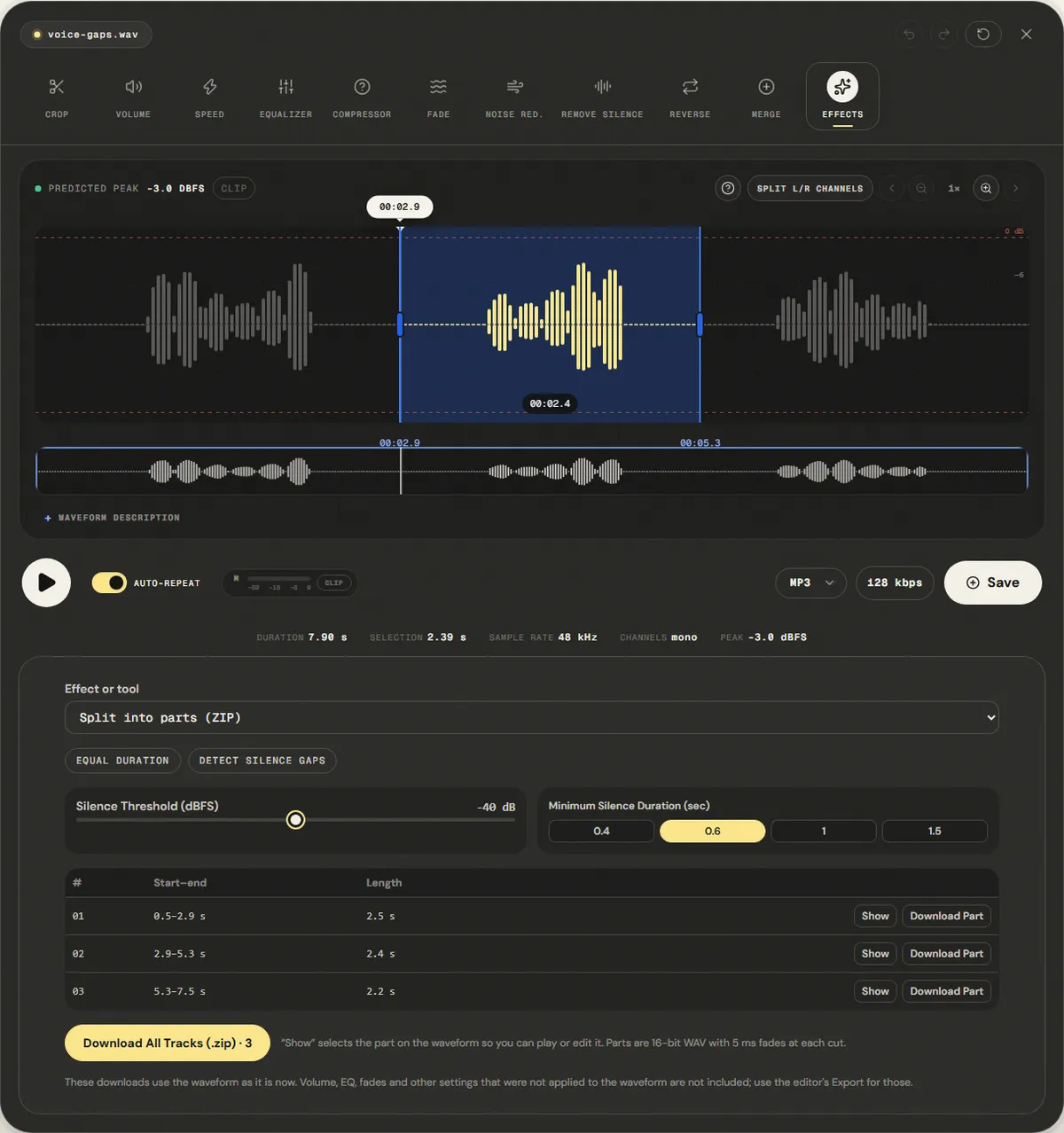
Show selects that part on the waveform so you can play it, adjust the selection or edit it before downloading.
Step 4: Download
Download Part saves a single WAV; Download All Tracks (.zip) saves every part in one ZIP, numbered in order. The downloads use the waveform as it is: apply any effects first.
Working out the part length for a size limit
The parts are 16-bit WAV at the file's sample rate, so their size is predictable: sample rate × 2 bytes × channels × seconds. At 44.1 kHz that is about 5.3 MB per minute in mono and 10.6 MB per minute in stereo; at 48 kHz, 5.8 and 11.5 MB.
- For a 25 MB email limit with a stereo 44.1 kHz recording: 25 ÷ 10.6 ≈ 2.4 minutes, so choose 1-minute parts (3 would be too large).
- For a 100 MB limit with a mono recording: 100 ÷ 5.3 ≈ 19 minutes, so 15-minute parts fit.
If you need fewer files, a lossy format is usually the better tool than splitting: an MP3 at 128 kbps is under 1 MB per minute. Export the whole recording as MP3 from the editor, or convert the parts afterwards with the audio converter.
Worked example: splitting a vinyl side into tracks
A digitised LP side is typically a single 15 to 25 minute file with a couple of seconds of quiet groove between songs. Vinyl is never truly silent, so the pauses sit around −50 to −40 dBFS rather than at digital silence. A reliable approach:
- Run click removal with the Vinyl preset first, so ticks in the gaps are not mistaken for sound.
- Choose Detect Silence Gaps, set the minimum pause to 1.5 seconds so quiet passages inside songs are not cut, and start the threshold at −40 dBFS.
- Compare the number of parts with the track list on the sleeve. Too few: raise the threshold a few decibels at a time. Too many: lower it, or keep 1.5 s and check which parts are fragments.
- Use Show on each part and listen to the first and last seconds before downloading.
If two songs run into each other without a gap (a live album, a DJ mix), no threshold will find the boundary. Select the song by hand on the waveform and use the editor's cut tools, or split by equal duration and accept that the cuts follow the clock rather than the music.
Measured example
Our reference has three spoken phrases separated by pauses of 1.2 to 1.4 seconds, with silence at both ends. We chose Detect Silence Gaps with the defaults (−40 dBFS, 0.6 s minimum pause).
The panel found 3 parts, one per phrase, and the ZIP with the three WAV files is 677.3 KB.
| Measured | Start–end | Length |
|---|---|---|
| Part 1 | 0.5–2.9 s | 2.5 s |
| Part 2 | 2.9–5.3 s | 2.4 s |
| Part 3 | 5.3–7.5 s | 2.2 s |
Each cut falls inside a pause, so the silence is shared between neighbouring parts rather than removed. Noisy recordings may have no pause below −40 dBFS; raise the threshold for them.
Download the reference file (WAV) · Same test on the tool page · Measured on November 11, 2026
Troubleshooting
| What you hear or see | Likely cause | What to change |
|---|---|---|
| Silence detection finds only one part | The pauses are louder than the threshold (room noise, music bed) | Raise the threshold toward −30 or −25 dBFS, or reduce noise first |
| Too many tiny parts | Breaths or short gaps count as pauses | Lower the threshold or choose a minimum pause of 1 s |
| Two songs ended up in one part | The gap between them is shorter than the minimum pause | Choose 0.6 s, or select and split that part again |
| A part starts in the middle of a word | Equal Duration cuts at fixed times | Use Detect Silence Gaps, or adjust the selection with Show and download it |
| The parts are much bigger than expected | Parts are WAV, not MP3 | Convert the parts to MP3, or use a shorter chunk |
Limits
Parts are always 16-bit WAV, named with the original file name and a number; the tool does not read titles from the audio or from track lists. Silence detection uses one threshold for the whole file, so a recording whose noise level changes (a lecture where the projector fan turns on halfway) may need to be split in two passes. And because the whole file is loaded into memory, very long recordings are limited by the editor's current maximum length, about a dozen minutes of stereo audio on a typical computer.
Frequently asked questions
Can I split an MP3 without re-encoding?
Does splitting remove the silence?
Why do the parts have fades?
What threshold should I use?
Can I name the parts?
Sources and how this was tested
- Wikipedia: WAV (PCM format, size per sample rate and bit depth)
- Audacity Manual: Label Sounds (silence-based splitting, for comparison)
Tested on November 12, 2026 in Chromium 153 on Windows 11, with a production build of this site. Screenshots and measurements were made by the scripts in scripts/tool-evidence, from synthetic reference files anyone can download and repeat.